To make the email services secure in Linux, you can use the
end-to-end encryption method. This method can send and receive
emails through a secure email transfer protocol. The Transport
Layer Security (TLS) protocol can be set for email services where
you don’t have to worry about the server; your encryption key
secures your email. In Transport Layer Security (TLS) protocol, the
sender and the receiver both can use the secure shell network.
Inbound and outbound emails can be secured from Linux
distributions. You can also secure your email services on Linux
through updating the language filters, external meta tag, email
plugin, and the email servers.
Networking Fundamentals to Secure
Email Services
If you are a Linux system administrator[1], you already know how
important it is to manage network ports for a secure connection.
Most email service providers use TCP port 25 for email services to
make a quick and universal connection with the client’s end. You
can also secure your email services by using the Simple Mail
Transfer Protocol (SMTP) server.
The SMTP[2]
server uses port 465, which is much more reliable and universal for
email services. Though it’s not recommended, you can still use port
the 25 for SMTP services. In this post, we will see how to secure
your Linux email services with SSL/TLS.
Step 1: Secure Email
Services Through the OpenSSL
If you have your website in a professional domain, you can
create and manage email accounts against your domain address. In
that case, you will need to make your domain address more secure
and encrypted. We can use the OpenSSL service to make it secure.
The OpenSSL is a service that can generate a pair of private and
public keys to make the connection encrypted.
To get the OpenSSL connection, you have to generate a new
private key to get the SSL security. First, you need to install the
OpenSSL services inside your Linux machine. You can use the
following terminal command lines to install the OpenSSL service
inside your system.
Install OpenSSL on Ubuntu/Debian Linux
$ sudo apt install openssl
Install OpenSSL on Red Hat Enterprise Linux
$ sudo yum install openssl
Install OpenSSL on CentOS and Fedora
Linux
$ sudo dnf install openssl
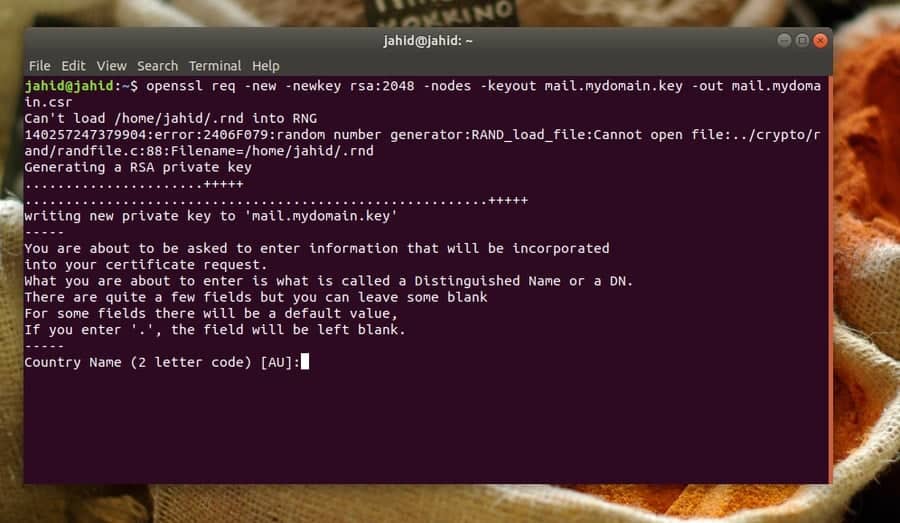
Here I am going to show how to generate a new private key for
any domain. You will need to put the domain address, country code,
email address, cell number, organization details, and other pieces
of information regarding your domain. Make sure that the private
key is in RSA format, and the key size is at least 2048 bits.
$ openssl req -new -newkey rsa:2048 -nodes -keyout mail.mydomain.key -out mail.mydomain.csr
Step 2: Build the SMTP and IMAP
Services
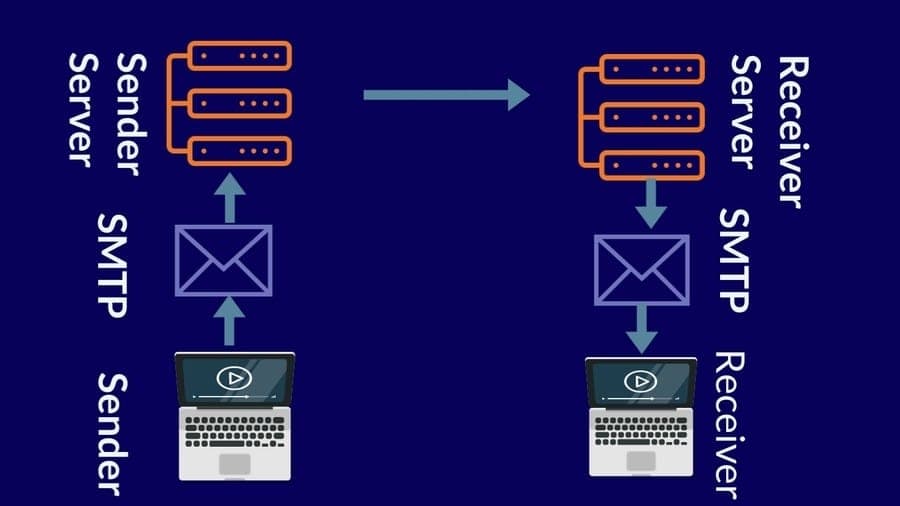
In networking, SMTP stands for Simple Mail Transfer Protocol.
The SMTP can verify and control email services. When you send an
email from your email client, the email is delivered to the email
server from your computer using the SMTP protocol, also known as
the SMTP server.
For example, if you are using Gmail, the SMTP server address
would be smtp.gmail.com. Then the server will send the
email to the recipient’s server. The email will stay at the
recipient’s email server until the receiver login to the email
address and gets the mail using the POP or IMAP protocols. The POP
(Post Office Protocol) or IMAP (Internet Message Access Protocol)
protocols are used for receiving emails.
The SMTP uses the TCP protocol to deliver the email. Here, I
must note that the TCP protocol guarantees that the email is
delivered to the correct destination. While you misspell the email
address or make any syntax error, you get an error message from the
TCP protocol.
Now we know about the protocols of the email server and how it
works. To make the email services secure on Linux, we can use the
Postfix Mail Transfer Agent (MTA). To make your email server secure
and safe, Postfix can be used with the SMTP server. At the
beginning of this step, we have to install the Postfix agent on our
Linux machine. Here the terminal command lines are given below for
various Linux distributions to install the Postfix.
Install Postfix on Debian/Ubuntu
$ apt-get update && apt-get install postfix mailutils
Install Postfix on Fedora Linux
$ dnf update && dnf install postfix mailx
Install Postfix on Centos
$ yum update && yum install postfix mailx cyrus-sasl cyrus-sasl-plain
Install Postfix on Arch Linux
$ pacman -Sy postfix mailutils
Now we can move ahead to configure the Postfix settings. Here
the basic and primary configurations are given below. You can use
the configurations to set up your Postfix client. You can use the
Nano script
editor[3] to open and configure
the Postfix settings on your Linux machine.
$ sudo nano /etc/postfix/main.cf
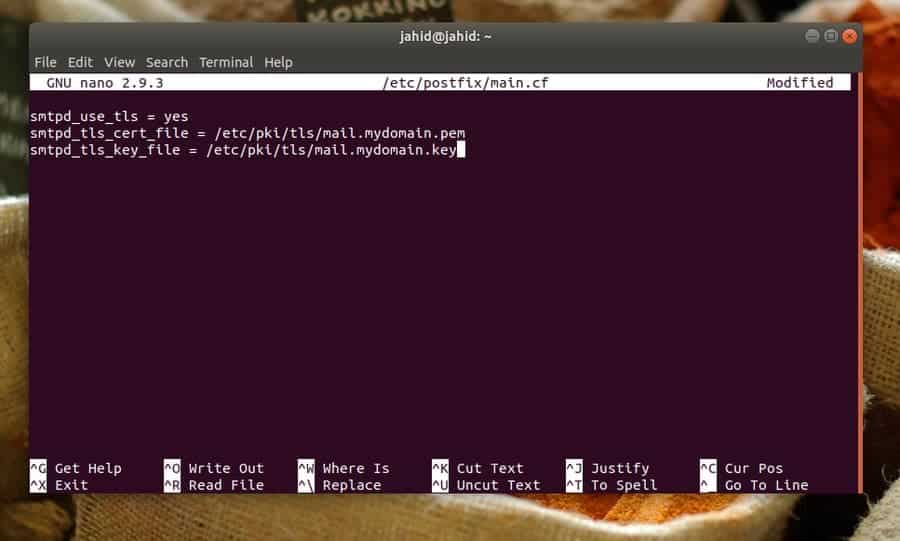
smtpd_use_tls = yes
smtpd_tls_cert_file = /etc/pki/tls/mail.mydomain.pem
smtpd_tls_key_file = /etc/pki/tls/mail.mydomain.key
Until now, we have seen how to set up the SMTP server settings;
now, we will see how to configure the receiver end settings. We
will use the IMAP settings to configure the server of the receiver
end. We will use the Dovecot server to set up the receiver end
settings. Linux usually comes with the Dovecot pre-installed, but
if you can not find the Dovecot inside your Linux machine, here are
the terminal command lines to install the Dovecot service.
Install Dovecot on Debian Based Linux
Systems
$ apt-get -y install dovecot-imapd dovecot-pop3d
Install Dovecot on Red Hat Linux Based
Systems
$ sudo yum install dovecot
Normally the Dovecot configuration file is located in the
/etc/dovecot directory. You can use the Nano script
editor to edit and finalize the Dovecot email service
configurations on your Linux machine.
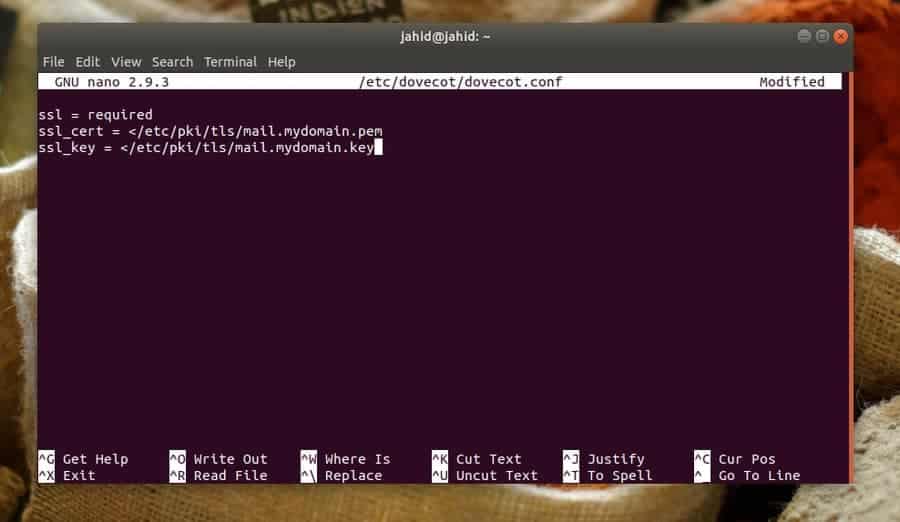
$ sudo nano /etc/dovecot/dovecot.conf
Here you can also set up the protocol for IMAP local mail
transfer protocol settings.
protocols = imap pop3 lmtp
listen = *, ::
You have to enable the SSL settings in order to make your email
server secure. The SSL configuration settings are given below for
you.
ssl = required
ssl_cert = </etc/pki/dovecot/certs/dovecot.pem
ssl_key = </etc/pki/dovecot/private/dovecot.pem
Create a location for your email services on your Linux
system.
mail_location = mbox:~/mail:INBOX=/var/mail/%u
Now you can restart and enable the Dovecot email service on your
Linux machine.
$ systemctl start dovecot
$ systemctl enable dovecot
Step 3: Configure the SELinux for
Email Security
Security-Enhanced Linux (SELinux) was first created for Red Hat
Linux, but now it is extensively used in almost every Linux
distributions. Most Linux normally comes with the SELinux
pre-installed. But if you can not find the SELinux inside your
Linux machine, you can install it anytime.
$ sudo apt install selinux selinux-utils selinux-basics auditd audispd-plugins
You can configure the SELinux to make the Postfix and Dovecot
email services more secure on your Linux machine.
Configure SELinux for Postfix
$ chcon -u system_u -t cert_t mail.mydomain.*
Configure SELinux for Dovecot
$ chcon -u system_u -t dovecot_cert_t mail.mydomain.*
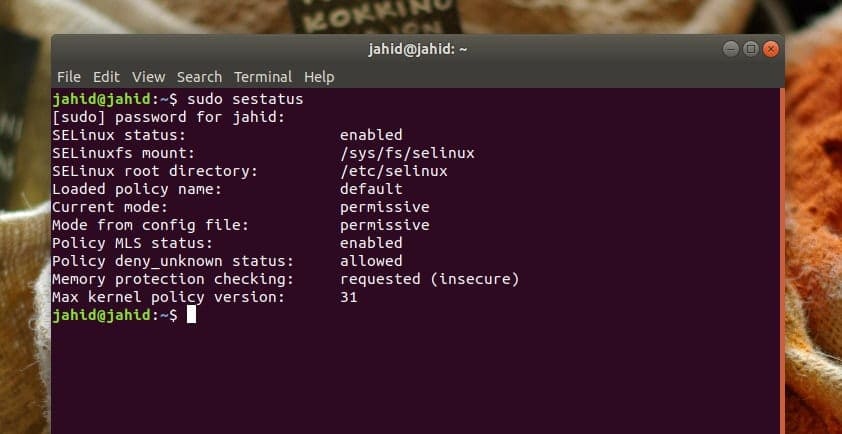
Now you can check the status of the SELinux. If you have done
everything correctly, you will be able to see the SELinux status on
your system.
$ sudo sestatus
Step 4: Check Email Service Status
on Linux
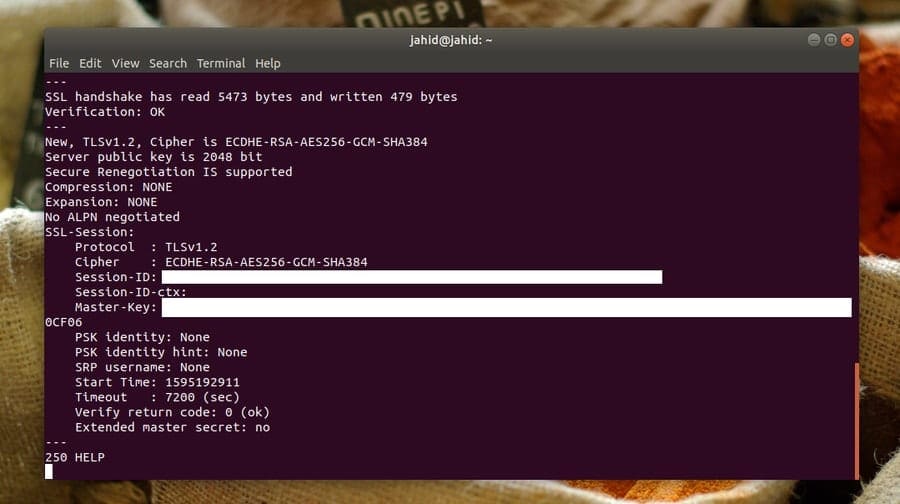
After everything is done correctly, it’s time to check the email
connections, whether they are secured. First, we will check the SSL
connection from the client’s end with a specific port of the IMAP
server. Then, we will check the SMTP server connection status.
In return, we should get the details information about the
private key, session ID, verification status, and the SSL protocol.
Here, all checkups are done from the client’s end, but you can
check either from the hosting end or the client’s end.
$ openssl s_client -connect mail.jahidonik.com:993
$ openssl s_client -starttls imap -connect mail.jahidonik.com:143
$ openssl s_client -starttls smtp -connect mail.jahidonik.com:587
Ending Words
Linux is mostly used for reliability and security purposes. On
Linux distributions, you can make your email services secure and
safe with SSL/TLS. In this entire post, I’ve demonstrated the steps
of configuring the OpenSSL, SMTP, and IMAP services to secure the
email connections. I have also described the networking fundamentals[4]
to secure email services on Linux.
Secure shell service (SSL) is the most reliable method to secure
your email services on Linux. Besides these, you can make your
email services secure through the settings of your email service providers[5]. If you find this post
useful and informative, please share it with your friends and the
Linux community. We also inspire you to write your opinions
regarding this post in the comment segment.
References
- ^
20
Things to Know for Becoming a Successful Linux System
Administrator (www.ubuntupit.com) - ^
SMTP
(sendgrid.com) - ^
Nano script editor
(www.nano-editor.org) - ^
40
Useful Linux Network Commands for Modern SysAdmins
(www.ubuntupit.com) - ^
Top 20
Best Linux Mail Server Software and Solutions in 2020
(www.ubuntupit.com)
Read more https://www.ubuntupit.com/how-to-secure-your-linux-email-services-with-ssl-tls/