official documents, accidentally or maliciously?
Adding more… when you even do not have any backup for the
same.
Unfortunate, right? We’ve all been there.
Just last week I formatted my computer and later found that I
didn’t have any backup for some recently saved important files. It
was an absolute nightmare.
We have frequently been asked, “All my files have been encrypted
or deleted by malware, what should I do now? Is there any way I can
recover them without paying a ransom?”
Well, whether you lose your files due to a cyber-attack,
ransomware, wiper malware, or even accidentally, fortunately, some
data recovery software better your chances of recovering your
deleted or lost files.
There are many data recovery software available in the market
that allows you to recover most of your accidentally deleted files
as well as data from damaged or formatted hard drives.
However, when we talk about an easy-to-use solution, I find
Stellar Data
Recovery Premium software as an obvious first choice among file
recovery software due to its efficient and straightforward
interface, which also makes it an excellent choice for
non-technical users.
[1]
Stellar Data Recovery Premium edition is available for Windows and
macOS operating systems, including support for Window 10 & macOS
Mojave, and supports a wide range of formatted drives, including
APFS, HFS+, HFS, NTFS, FAT, and exFAT.
The software offers users an effortless way to recover most of
their valuable lost or deleted photos, emails, videos or any other
type of data back from Hard Drives, SSD, USB Flash Drives, SD Card
and others.
How to Use Stellar Data Recovery Software and Its Features
It’s very simple actually. All you have to do is:
1.) Download and
install[2] the application and
launch it.
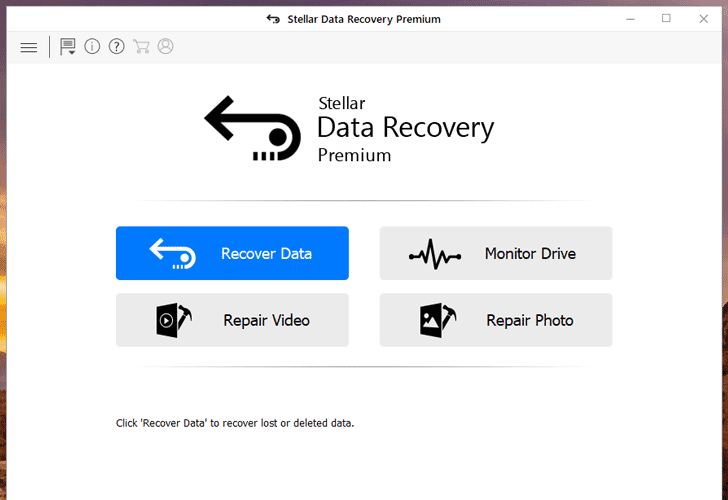
2.) Move to ‘Recover Data’ section and select what type of files
you want to recover and from where.
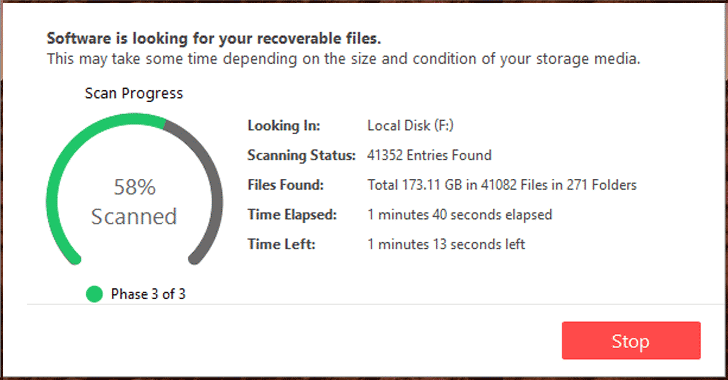
partitions for all recoverable deleted files.
4.) From there, you can select the files you are looking for and
retrieve them to a folder of your choice. That’s it.
Besides file recovery, the Stellar Data Recovery software also
supports in-depth scanning feature to help users find hidden or
missing partitions on a drive that might have been lost due to
corruption or accidental deletion.
We prefer choosing Stellar Data Recovery Premium edition, as it
also comes with a useful, specialized feature designed to repair
corrupt or damaged videos and photographs, even when they appear
distorted, split, blurred, or pixelated.
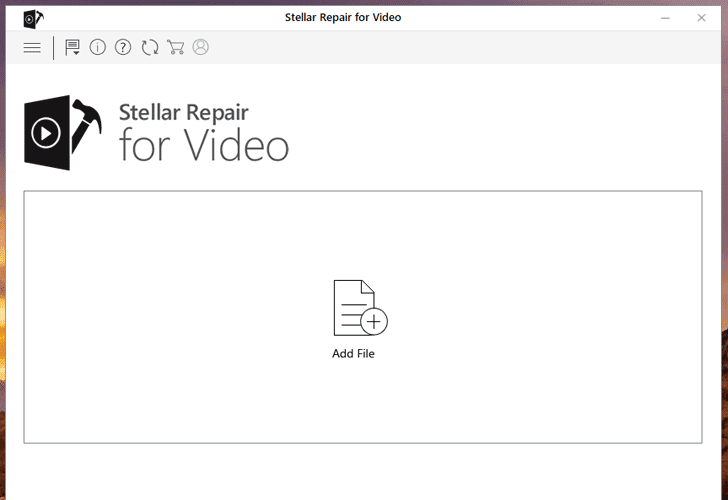
simultaneously repair multiple video or photo files in easy and
simple steps, i.e. just add corrupted files and click
repair.
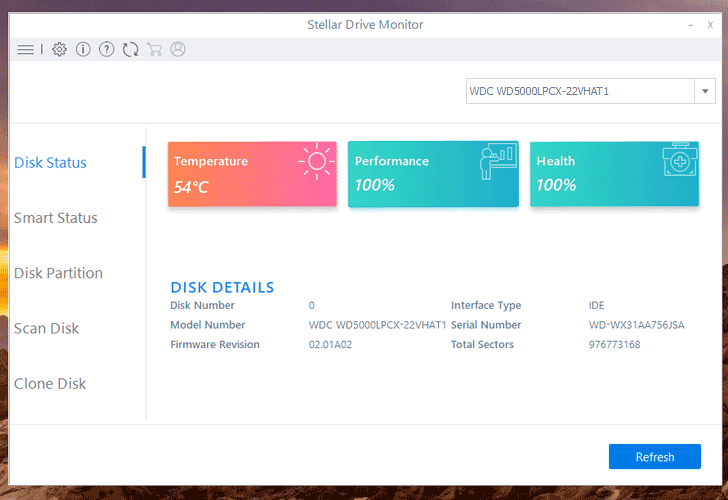
feature that has been designed to help regular users to monitor the
health status of their hard drives continuously, scan for bad
sectors, and it even provides a simple utility to create an exact
replica of a failing drive by using the Clone Disk functionality.
You can download the Windows[3] or Mac
version[4] of the software from
Stellar’s official website and if you find it useful, simply
purchase a license key to take full benefit of all the
features.
References
- ^
Stellar Data Recovery Premium
software (www.stellarinfo.com) - ^
Download and install
(www.stellarinfo.com) - ^
Windows
(www.stellarinfo.com) - ^
Mac version
(www.stellarinfo.com)
Read more http://feedproxy.google.com/~r/TheHackersNews/~3/yjUcnpYe5rg/recover-deleted-lost-files.html