Microservices have been gaining steady popularity since the
cloud uprising. Companies like Amazon and Netflix are using
cloud platforms to deliver their most
in-demand services. Containers sit at the core of such cloud-native
applications. A container is an isolated environment that
facilitates microservices and offers benefits like superior scaling
and rapid deployment. There’s a huge difference between traditional
hypervisor-based virtual machines like
VMware and OS-level virtualization services like Docker and Linux
Containers (LXC). In this guide, we will provide our readers with a
working knowledge of LXC, a robust system-level virtualization tool
for Linux. [1][2]
All in One Guide for Mastering
Linux Containers
If you’re a Linux admin[3]
who wants to learn about LXC in detail, then this is the perfect
guide for you. In this post, we describe the various features and
benefits of LXC as well as when to choose this over other
containerization services. We will also show you how to install and
get started with LXC.
Linux Containers: Features and
Fundamentals
So, what is LXC? As we’ve already said, it’s a virtualization
service that allows us to spin clusters of isolated Linux
environments. It provides a large number of benefits over
monolithic virtual machines by reducing the resource load on the
host machine. This makes it ideal for building, testing, and
deploying cloud-native software. LXC, unlike other OS-level
virtualization tools, provide much better Linux environments[4].
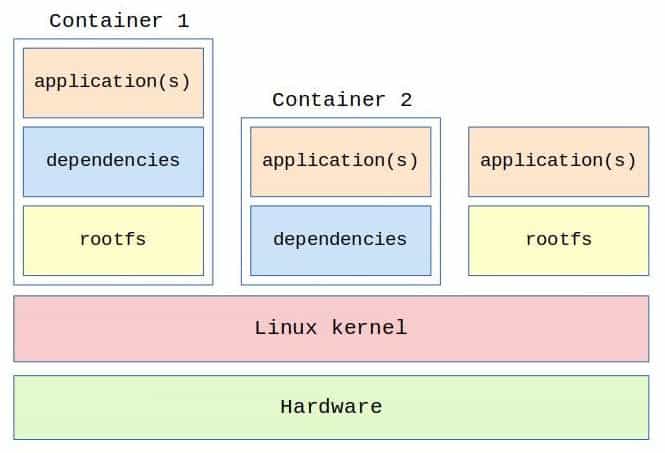
LXC does not use any fancy resource control mechanisms like
hypervisors. Rather, it utilizes host containment features provided
directly by the Linux kernel. The primary components it relies on
are namespaces and cgroups. They
were first added to the kernel since version 2.6.24. The main
design principle of cgroups aka ‘Control
Groups’ is to provide resource limitation, prioritization,
accounting, and control. Namespaces are responsible for hiding the
process space and resource information of one container from
others.
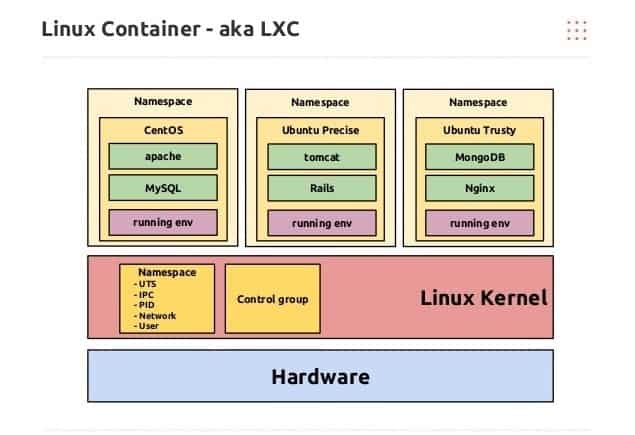
Moreover, LXC also has in-built support for various Linux hardening policies such as
Apparmor and SELinux profiles as well as Chroots. It runs on almost
every architecture and in the cloud effortlessly. Plus, you can
spin up any Linux distribution regardless of the host. So, say your
host machine is running Ubuntu. You can easily run Red Hat or CentOS on this machine using
LXC containers. [5][6]
LXC, unlike some other containerization services, can not run
Mac OS or Windows. This is because LXC containers rely on the host
kernel directly. So, if you want to run apps that require one of
these systems, you should consider a different platform like
Docker[7]. Overall, LXC is most
suited to people who need to run isolated Linux environments with
minimal resource overhead.
Linux Containers vs.
Docker
If you are working in a DevOps team or as a site reliability
professional, you should already be familiar with Docker. It’s the
most popular containerization platform for cloud-native apps these
days. So, you may ask yourself how LXC differs from Docker or which
one of them is better. As with any technologies, the answer solely
depends on your use cases. Nevertheless, we will shed some insight
on the differences between these two popular virtualization
platforms.
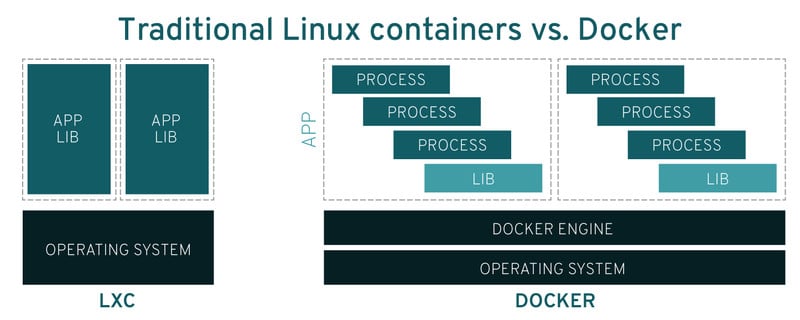
Docker is a relatively newer technology compared to LXC. In
fact, it used LXC under the hood in its early days. However, Docker
has come a long way since then and has implemented its own
solutions. Now, the main difference between Docker and LXC is their
design choices. Docker emphasizes more on building applications.
LXC, on the other hand, is designed for providing standalone Linux virtual environments.
[8]
Developers usually use Docker for creating apps that can be
thrown away as soon as a new version arrives. Apps that use LXC,
however, are meant to be persistent. You can ssh into an LXC
container as you’d do into a remote Linux host and manage the
environment. Docker does not allow this, and you’ll be using
specialized tools to manage deployment and testing. In the end, you
can use either of these for building cloud apps. People usually
choose LXC over Docker when building apps that need to be
maintained for a long time.
LXC: Components
The LXC runtime consists of a bunch of individual components.
This includes the core liblxc library, a set of
standard tools for controlling the containers, various distribution
templates, and several language bindings for the main API. Language
support includes Python, Go, Ruby, Lua, and Haskell. Additionally,
there are some hard dependencies without which lxc won’t install,
such as a C library like glibc, uclib, or bionic. LXC also requires
kernel version 2.6.32 or more.
LXC: Virtualization
Type
Linux containers (LXC) offers a nominal operating system
environment that can be used to run specific Linux applications or
network services. It uses the host system’s kernel directly and, as
a consequence, can not be run on non-Linux machines. Users can
choose from a large number of distribution[9] templates for their
container, including but not limited to Ubuntu, Fedora, Debian, Red
Hat, and CentOS.
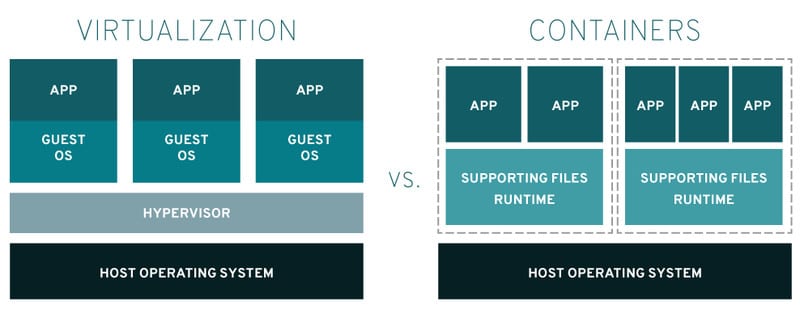
The primary benefit of this type of container is that they allow
us to isolate sensitive services. You can use this type of
virtualization for creating environments for malware analysis,
ethical hacking, or tasks that require a standalone host. However,
these are only the intended purposes. So, you can also run any
arbitrary services that you usually run on your Linux machine. This
is a sharp contrast to Docker’s application-centric approach.
LXC: Tooling Support
Robust tooling support is crucial for managing cloud
applications as well as standalone services. LXC offers a rich set
of tools that are almost identical to your traditional Linux
machine. Thus, you do not need to install fancy management tools in
order to manage your LXC containers. You can use any standard Linux
packages such as ssh, htop, iptables, and Linux Cron jobs[10]. This makes it easy for
admins to manage and automate containerized services.

Moreover, the lxc cli offers a comprehensive set of tools for
creating, running, and managing LXC containers on the fly. You will
learn how to install this and use the perform the basic functions
in this guide. Plus, you can also use additional tools by using the
LXD toolchain. We will talk about LXD in detail in the subsequent
sections. Overall, LXC does not limit the user’s ability to use
standard Linux packages while still offering specialized tools.
LXC: Ecosystem
The LXC ecosystem is practically identical to that of Linux.
This makes it easier to get started with Linux containers than with
Docker or rkt. Since we can install and run all the standard Linux
packages in these containers, it is easy to configure and maintain.
So don’t get overwhelmed when you find out that there’s no need for
additional tools like Kubernetes and Swarm for LXC.
LXC: Ease of Use
One of the key reasons for moving to containerized platforms
from Linux virtual machines is increased ease of use. LXC take this
a whole step ahead by removing the need to install monolithic
packages altogether. This not only increases productivity but also
makes the workflow much easier to handle. LXC containers come with
individual init systems that take care of the system configuration
while maintaining a lightweight resource footprint.
Moreover, the smooth user experience and a mature ecosystem make
LXC a far better choice than traditional virtual machines. You can
spin up an LXC container within minutes and run your favorite Linux
distro in it. Installing and managing Linux applications is as
simple as typing a few everyday commands. So, if you do not wish to
learn a whole new set of tools and still be able to run isolated
services, LXC containers offer an excellent option.
LXC: Popularity
There is no doubt that Linux containers lack in the popularity
enjoyed by Docker. This stems from some concise design choices,
which include the inability to run Windows or Mac OS environments,
among others. Docker is more lightweight than LXC and is thus more
scalable. However, LXC is much older than Docker, and its
containers are significantly more standalone than Docker.
Moreover, LXC is much suitable for creating testing environments
like malware analysis labs, and so on. This makes it much more
popular among senior IT professionals who work with sensitive
projects on a regular basis. LXC also enjoys greater popularity in
industries that develop and maintain apps with a long lifecycle.
Overall, although it lacks in popularity compared to Docker or rkt,
LXC offers increased security and ease of maintenance.
LXC: Performance
As we have stated already, one of the main reasons people use
containerized platforms over virtual machines is reduced resource
load. This, in turn, leads to a far superior performance. LXC
offers more than 10 times density than traditional virtual machines
like KVM (Kernel-based Virtual Machine). This means you can run up
to 10 times more containers in a single Linux host compared to KVM
guest machines.
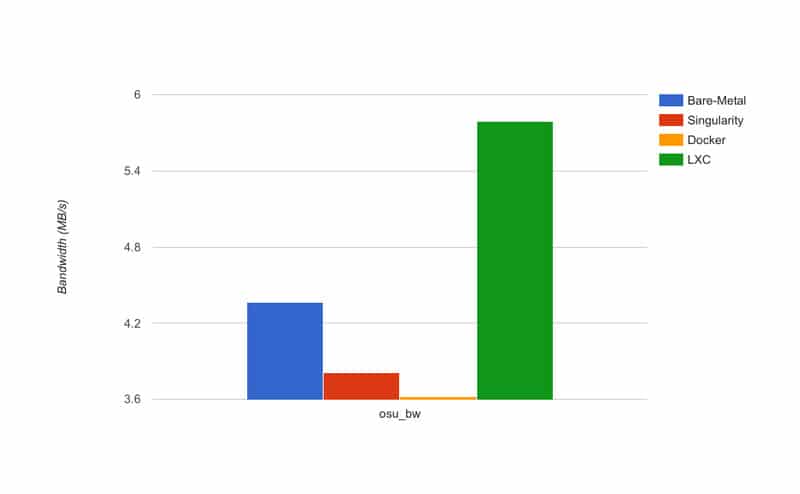
Moreover, hypervisors are also prone to unwanted latency issues.
Compared to KVM, LXC reduces the latency to 57%. Additionally, LXC
containers load much faster than virtual emulators backed by
hypervisors. For example, LXC instances launch 94% faster when
compared to KVM. So, as you can see, LXC provides a significant
boost in performance by reducing the resource load and latency. And
the faster load time offers a smooth user experience.
LXC: Integration
One key benefit of Linux containers is that they integrate
really well with existing software. You are not limited to using
only traditional Linux applications with LXC. For example, we can
use both LXC and Docker as a complement to each other. What this
means is, you can simply host your Docker microservices in an LXC
instance for providing them better isolation and VM-like
characteristics. This makes it extremely convenient to run and
manage Docker apps.
Moreover, it also takes away the limitation of running only
Linux-native apps[11]. So, we can easily
create a Docker microservice on top of Windows or Mac and run that
from inside a Linux container. This is a really neat method. LXC is
also suitable for OpenStack[12], a popular cloud
computing platform. It is used by a large number of industry
leaders and is usually deployed as an IaaS
(Infrastructure-as-a-Service). This makes deploying and managing
cloud apps easier than ever.
LXC: Migration
Migration is crucial for a lot of admins, and LXC provides
adequate support in this regard. There is more than one way to
migrate a Linux container from one host to another. You can also
perform live migration, albeit with some limitations. The easiest
way to migrate a container to a different platform is to take a
backup and restore it on the target machine, either physically or
remotely over ssh.
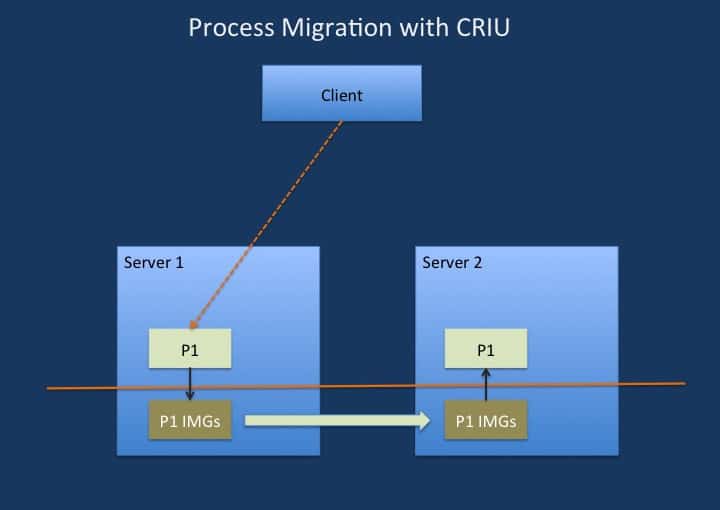
You can also migrate a container using the LXD API and
Simplestreams protocol. We are going to talk about LXD in the
following section. So don’t worry if you don’t know about this
already. We are not going into too many details about each step of
the migration process. Perhaps we’ll cover that on a different
guide. For now, you can find some more information on the Ubuntu website regarding live
migration[13]. Stéphane Graber, the
lead developer of LXC, also covered LXC migration on his website[14].
LXC: Support
As with any new platform, enterprise support is very crucial.
Thankfully, LXC provides top-notch service in this regard. So, no
matter whether you use Linux containers for personal or business
purposes, you’re guaranteed to get additional support whenever you
need it. Moreover, since LXC is developed by Canonical, the company
behind Ubuntu and other popular open-source software. Thus, the
quality of the service is as better as it gets.
Canonical also offers commercial support for companies that want
to use LXC for their cloud-native applications. However, it is also
provided for Ubuntu LTS releases. LXC versions 2.0 and 3.0 are long
term support releases. So, if you want to have stable containers
across all your platforms, you should stick with these versions.
Support for other distribution templates usually depends on that
specific distribution.
LXD: Getting Started
LXC started out as a userspace interface that provides access to
the Linux kernel’s in-built containment features. It is more than
capable of its tasks. However, with the emergence of Docker[15] and its powerful
ecosystem, the developers shifted their focus on developing a more
mature platform. The result is LXD, a robust container management
system which can provide virtual machine like experience but using
LXC containers.
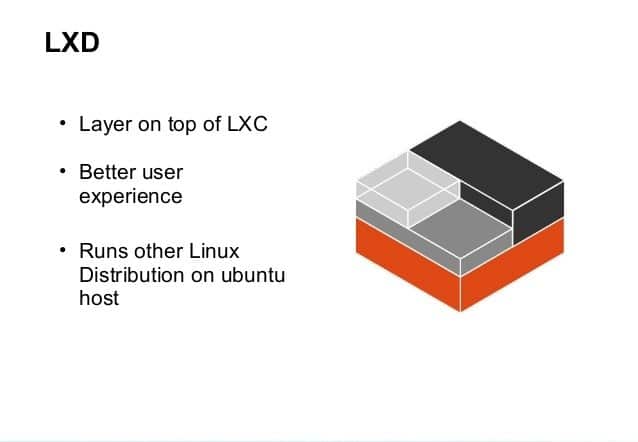
LXD is based on images, much like Docker images. It also
implements a simple yet powerful REST API for interacting with the
services at ease. This API connects with the local system using a
Unix socket and can also be remotely connected over standard
network protocols.
Some of LXD’s features include increased security, scalability,
user experience, live migration, advanced resource control, network
management, and storage management. Overall, LXD a complement to
LXC, not a replacement. It uses LXC under the hood and simply takes
away the low-level details.
Installing and Using
LXC
We’ve discussed the merits of Linux Containers in heavy details.
Now, it is time to get our hands dirty and getting started with
using this awesome technology. But first, you need to install LXC
on your machine.
We are showing how to install LXC on a standard Linux machine.
You will learn how to install LXC in Linux and create containers
using the CLI. Simply open your favorite Linux terminal emulator[16] and type in the
following command.
$ sudo apt-get install lxc
This will install the lxc CLI in your local machine. Once this
is done, you will have access to all the lxc commands as well as
distribution templates that are necessary to build and run
containers. You can now create a basic container using the
following simple command.
$ lxc-create -t <template> -n <container name>
The -t flag specifies the name of the template,
and the -n flag specifies the name of the
container. This command will create the container based on the
given distribution template. Use the below command display a list
of all available templates.
$ ls /usr/share/lxc/templates/
So, the below command creates a container named test-container
using the Alpine template.
$ lxc-create -t alpine -n test-container
This will go ahead and download the files necessary for an
Alpine installation. This should take a while and will show the
default user and password once it is done. Now, you can start the
container using the below command.
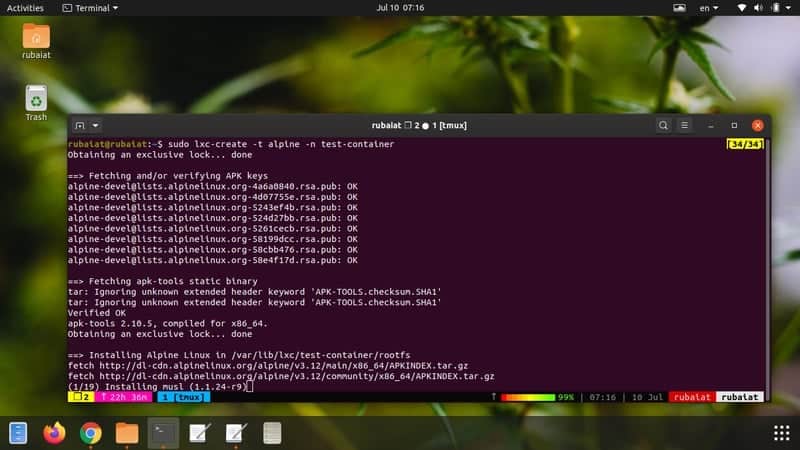
$ sudo lxc-start -n test-container
Use the next command to connect with this container using the
default username and password.
$ sudo lxc-console -n test-container
This will connect you to the running container. Use the
Ctrl+a+q
key combination for disconnecting from this container. You can also
connect to the container directly as root by using the
following.
$ sudo lxc-attach -n test-container
Use the below command to take a look at some of the information
for this container.
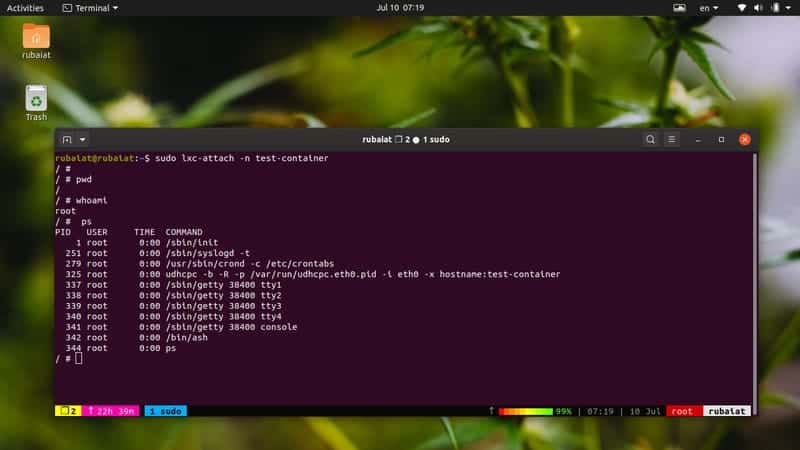
$ sudo lxc-info -n test-container
It will display the name of the container alongside its state,
PID, IP address, memory usage, CPU usage, and more. If you have
started multiple containers, you can view a list of them by using
the following.
$ sudo lxc-ls
To stop a specific container, use the following command.
$ sudo lxc-stop -n test-container
You can also remove a container from your system if you do not
need it anymore. Use the below command for this purpose.
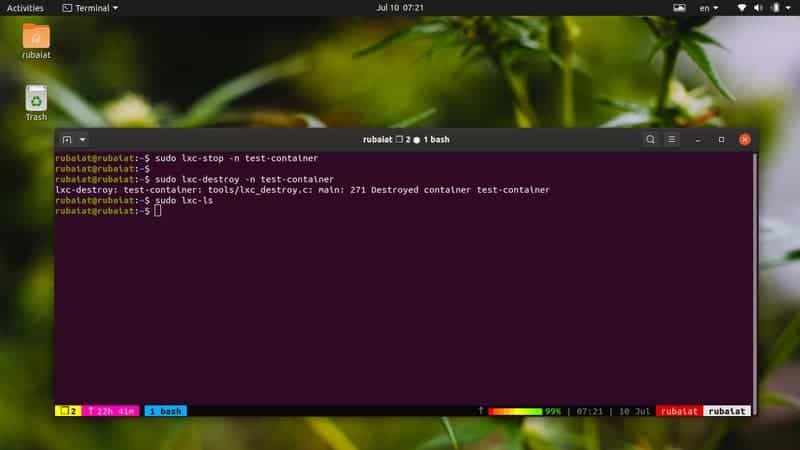
$ sudo lxc-destroy -n test-container
This will erase the test-container alongside all of its
configurations from your host environment. Go to the LXC documentation page[17] for more details on
each available command.
Installing and Using
LXD
As we’ve already discussed, LXD is a wrapper for LXC with a list
of added features. It is essentially an image-based management
system for Linux containers. You can install lxd using the
following command.
$ sudo snap install lxd
You don’t need to install LXC separately if you install LXD.
Apart from the snap package, LXD is also available as Debian
packages. You can also install it from the source. Now, you need to
do some configuration stuff. The first one is to add
/snap/bin/lxd to the $PATH of
your system.
  $ echo 'export PATH="/snap/bin/lxd:$PATH"' >> ~/.bashrc
$ source ~/.bashrc
You need to initialize the lxd configuration now. Simply run the
following Linux terminal command[18] for doing this.
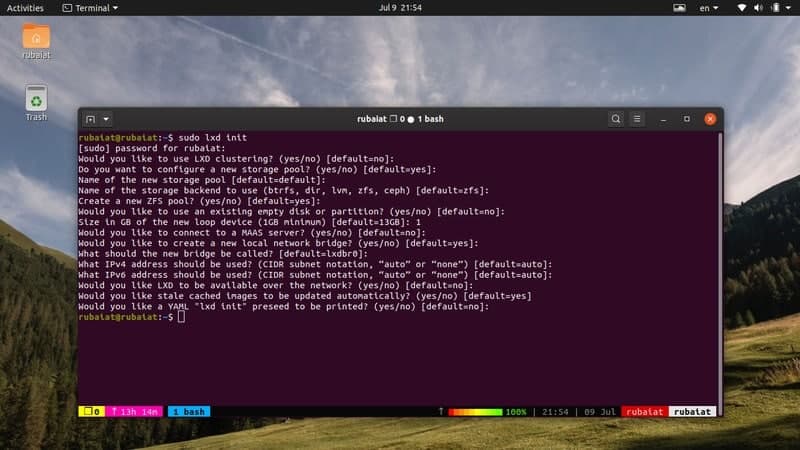
$ sudo lxd init
It will ask you for a bunch of options. You can just select the
default ones for your now. Once the configuration is done, you can
now create your first container. LXD creates container instances
using images. The below command shows a list of available image
repositories. You can add new image sources as well as build them
locally. For now, we’ll stick with the official remotes.
$ sudo lxc launch images:alpine
This command will create an instance using the alpine image.
It’s a fairly lightweight image that suits our purpose very well.
You can use other images if you want. Now, you can use the below
command to get a shell to this newly created container.
$ sudo lxc exec test-container /bin/sh
If you’ve created the container based on a Ubuntu image, replace
/bin/sh with /bin/bash for
invoking the bash shell. You can also use any standard Linux shells[19] as long as the
container image supports that. You may also run a command inside
the container without connecting to a shell.
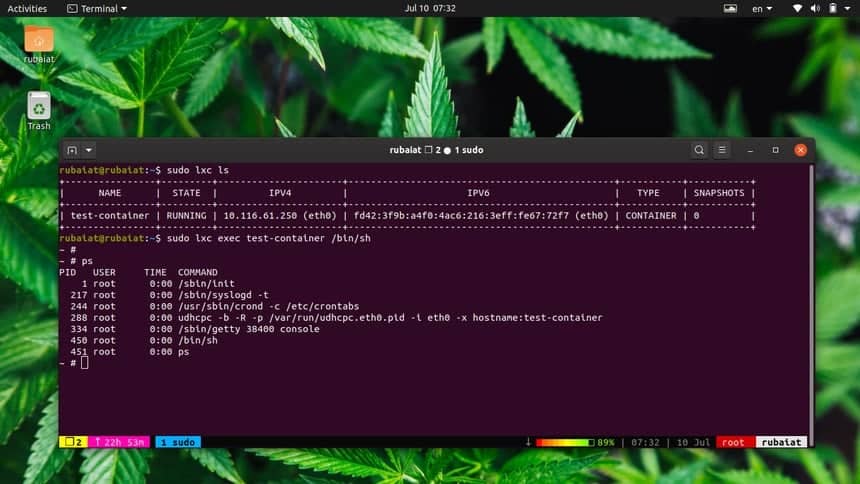
$ sudo lxc exec test-container -- ip a
This will print the ip address of the container interfaces using
the Linux ip command[20]. Finally, you can stop
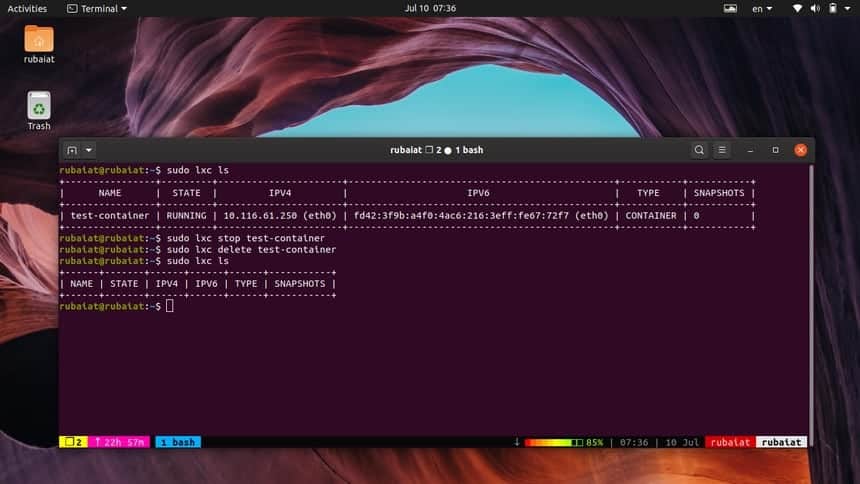
the test-container using the below command.
$ sudo lxc stop test-container
LXD supports a lot of additional commands for Linux containers.
Head over to the LXD documentation page[21] for more details on
this.
Ending Thoughts
Linux containers are a great way to implement lightweight VMs
without any hypervisors. This makes them highly scalable and
resource-friendly. Moreover, LXC also offers a viable approach to
developing cloud-native applications. The primary difference
between LXC containers and Docker containers is that LXC is
OS-centric, whereas Docker containers are application-centric.
So, if you are looking for building a personal lab environment
or a robust cloud-ready service, consider LXC a better option than
Docker or rkt. Nevertheless, Docker is still an excellent choice
for application virtualization. So, check out our guide on everyday
Docker commands if you want to try Docker.
References
- ^
The 25
Best Cloud Computing Companies and Platforms in 2020
(www.ubuntupit.com) - ^
hypervisor-based virtual machines
(www.ubuntupit.com) - ^
20
Things to Know for Becoming a Successful Linux System
Administrator (www.ubuntupit.com) - ^
better
Linux environments (www.ubuntupit.com) - ^
various
Linux hardening policies
(www.ubuntupit.com) - ^
Red Hat
or CentOS (www.ubuntupit.com) - ^
50
Frequently Asked Docker Interview Questions and Answers
(www.ubuntupit.com) - ^
standalone Linux virtual
environments (www.ubuntupit.com) - ^
a large
number of distribution (www.ubuntupit.com) - ^
Linux
Cron jobs (www.ubuntupit.com) - ^
Best
Linux Software: Our Editorial List of Essential Linux Apps
(www.ubuntupit.com) - ^
OpenStack
(www.openstack.org) - ^
Ubuntu
website regarding live migration
(ubuntu.com) - ^
LXC
migration on his website (stgraber.org) - ^
the
emergence of Docker (www.ubuntupit.com) - ^
Linux
terminal emulator (www.ubuntupit.com) - ^
LXC
documentation page (linuxcontainers.org) - ^
Linux
terminal command (www.ubuntupit.com) - ^
standard Linux shells
(www.ubuntupit.com) - ^
the
Linux ip command (www.ubuntupit.com) - ^
LXD
documentation page (linuxcontainers.org)
Read more https://www.ubuntupit.com/everything-you-need-to-know-about-linux-containers-lxc/