It’s no secret that the internet isn’t a very safe place. And
it’s not hard to understand why. It’s a medium that connects
billions of people around the world that affords bad actors enough
anonymity to wreak havoc without getting caught. It’s almost as if
the internet’s tailor-made to enable scams and fraud.
And that’s just what it does. Right now, the world’s on track to
lose $10.5 trillion every year[1] to cybercrime. That
number is so large that it’s hard for the average person to grasp.
And when most people hear it, they imagine that money’s coming
mostly from large-scale data breaches and ransomware attacks on
large companies.
Although businesses are among the hardest hit each year, they’re
by no means the only target. Every day, internet users are targeted
too. They face barrages of phishing emails, compromised websites,
and booby-trapped downloads. But among all of the attacks aimed at
rank-and-file users, there’s one that stands out – the tech support
scam.
What are Tech Support Scams?
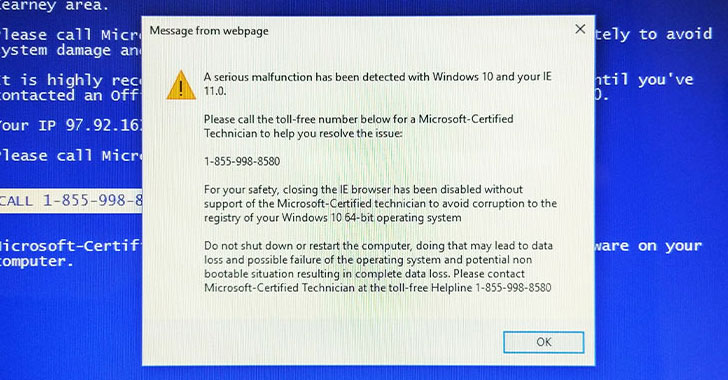
Tech support scams happen when people receive a message – either
through a popup on their screen or an unsolicited phone call –
insisting that something’s wrong with their computer and needs
fixing. But what the perpetrator really wants is remote access to
the user’s PC. And once they have it, they try and collect personal
and financial data to enable further crimes like bank fraud and
identity theft[2]. And they’re so common
that Microsoft estimates that three in every five internet users
get targeted every year.
But there are some things that the average internet user can do
to protect themselves from tech support scams. They can start by
building awareness of how common tech support scams
work[3]. Then, they can arm
themselves with some digital security tools to minimize the odds of
becoming a victim in the first place. Here’s what they can use.
A Malicious Site / Ad Blocker
The first digital tool that internet users can deploy to avoid
tech support scams is a malicious site and/or ad blocker. This is
effective because many of the fraudulent tech support popups users
encounter are the result of visiting compromised websites. Sites
are vulnerable when webmasters fail to secure their site installations[4], which happens more
often than you’d think. So, blocking known compromised websites is
an excellent and effective way to avoid encountering those popups
at all.
For those who don’t want to go as far as blocking ads outright,
there’s a utility called Spyware Blaster that works quite well on
Windows-based PCs. It secures web browsers to prevent a variety of
exploits that make fraudulent popups possible and prevents access
to a variety of known bad websites. Best of all, it’s free if you
don’t mind updating the software manually from time to time (or you
can purchase the auto-update feature for a nominal fee).
But for complete protection, something like uBlock Origin is a
good option. It’s a browser plugin that relies on crowdsourced data
to block all kinds of advertising, cookies, and known bad websites.
It’s also free for personal use and works on today’s most popular
web browsers.
A Trusted Antivirus/Antimalware Solution
When threats like spyware began to proliferate in the early
2000s, most internet users knew that having an active and updated
antivirus/antispyware solution on their device was essential to
stay safe. But in recent years, users have gotten less vigilant
about playing defense. Back in 2018, antivirus maker Webroot found
that almost 50% of Americans had given up on using an antivirus
altogether.
Well, that’s a big mistake. It turns out that the protection
that’s built into most modern operating systems doesn’t work nearly
as well as third-party solutions. Having an active and updated
antivirus/antimalware solution on your PC is still a good idea, and
will generally keep it trouble-free and running well. Plus, having
a known antivirus on your PC makes it much harder for a scammer to
trick you with a popup. After all, you’re not likely to believe a
random onscreen message when your known antivirus program says
everything’s OK, are you?
A Secure and Private VPN Service
Last but not least, internet users should add a secure and
private VPN service to their defensive arsenal. A VPN won’t stop
you from giving a scammer remote access to your PC (only you can do
that), but most VPN services don’t play nice with common remote
access software. That alone might buy you enough time to realize
that you’re about to be victimized and prevent the scammer from
gaining access to your machine.
And as a bonus, many VPN providers offer website filtering,
which works just as well as the malicious site and ad blockers
mentioned earlier. That makes them excellent at preventing many of
the ads and popups that facilitate tech support scams. And, they
help to keep your data safe at all times by encrypting your
internet traffic as it passes back and forth between your PC and
its intended destination – so they’re great at preventing a variety
of other data theft attacks, too.
The Bottom Line
At the end of the day, the best way to avoid falling victim to a
tech support scam is to know that no company – not Microsoft,
Apple, or anyone else – is ever going to call you or create a popup
asking you to call them. Neither will any reputable antivirus
vendor. In other words, if something were to go wrong on your
computer for real, you’d likely be the only one to notice it.
But tech support scams rely on the chance that they may catch
even a savvy user in a vulnerable moment. So it’s worth deploying
the technologies listed here anyway to stay safe. Together, they
prevent many of the attack vectors scammers use to trick you and
keep your computer running virus and malware-free at all times. And
while there’s no bulletproof solution available, being prepared is
better than not.
References
- ^
lose
$10.5 trillion every year
(cybersecurityventures.com) - ^
identity
theft (www.aura.com) - ^
how
common tech support scams work
(www.consumer.ftc.gov) - ^
secure
their site installations
(www.wpbeginner.com)
Read more https://thehackernews.com/2021/12/how-to-prevent-customer-support-help.html