Memory Cache or in short Memcached is the fasted possible way to
speed up the process of opening any page or website from your
device. Memcached allows the user to hold and store some cache
files inside the system RAM (Memory) so that the page can be loaded
in the shortest possible time. The memcached is a PHP
based extension that can be used on Joomla, WordPress, Magento, or other
PHP-based content management system. It is very
easy and straightforward to install and configure the Memcached on
the Ubuntu Linux. [1][2]
Memcached on Ubuntu
Linux
Well, the memcached is not only meant to be used
with the PHP framework, but it can also be used with Perl, Python,
Ruby, C++, or Javascript. You may ask, do I need setting up and
enabling the Memcached if you are using an SSD? The answer is here,
though the SSD’s have dynamic random-access memory (DRAM) inside
the board, the cache speed process is way better in RAM than
SSD.
The web data of a website is usually temporarily stored inside
the SSD; then, the process happens inside the memory chip. But if
you are using the traditional HDD, it’s urgent and necessary for
you to enable the Memcached extension to boost up your website or
applications. In this post, we are going to see how to Install and
configure Memcached on Ubuntu Linux.
Step 1: Installing the
memcached on Ubuntu Linux
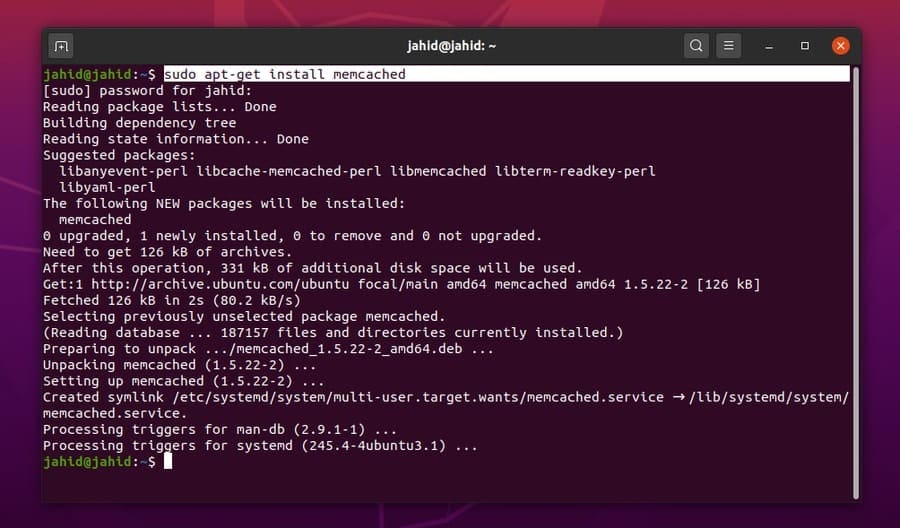
Installing the Memcached on Ubuntu Linux is lucid and
straightforward. You must have to open your terminal command shell
to get the extension. We are going to use the apt-get
CLI to install the memcached on our Ubuntu Linux. For
the beginning, we are just trying to install the Memcached primary
extension set up on my Linux machine. Later we will take care of
the rest of the parts.
$ sudo apt-get install memcached
Step 2: Configuring the
memcached on Ubuntu Linux
After installing the primary extension package of the Memcached
on Ubuntu, now you need to configure the Memcached settings with
our desired settings. To check the default port of Memcached, we
can use the -h terminal command following the
Memcached command.
memcached -h
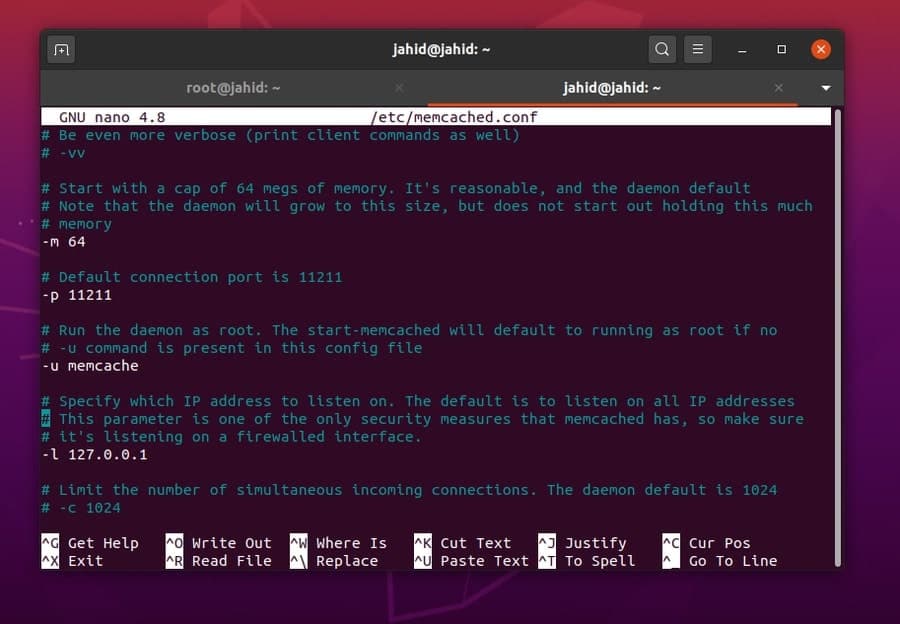
Now, you have to open the Memcached configuration file to edit
save the settings. We are going to use the Nano script editor to
edit the Memcached configuration file. You can use the following
setups for better performance. The default port of Memcached for
the localhost address is 11211.
$ sudo nano /etc/memcached.conf
You can use the following settings to test the
memcached system in the localhost address.
-u memcache
-m 64
-p 11211
-m 4096
-c 2000
-l 127.0.0.1
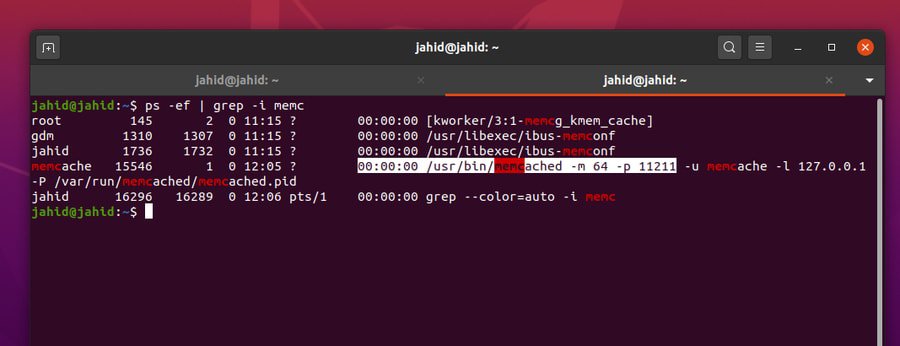
Now we can run the grep commands from the terminal shell to
get detailed information about the present status of the Memcache
of our Ubuntu Linux. We can check the running status information of
the Memcached form the localhost address by using the Telnet terminal command. Telnet is a
terminal command script that can print the information of a duplex
connection. [3][4]
$ ps -ef | grep -i memc
$ memcstat --servers localhost
$ telnet 127.0.0.1 11211
> stats
Step 3: Installing the
memcached Library Tools on Linux
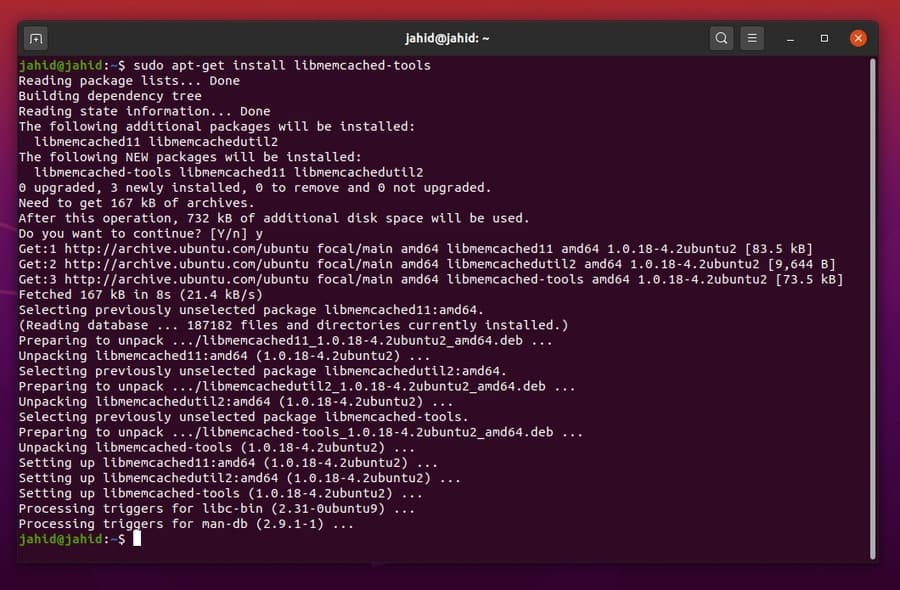
Here, now in this step, we are going to install the library
files for Memcached in our Ubuntu Linux. The library files and
configurations can build up the initial settings for PHP cache in
memory. To get the Memcached library files installed inside your
Linux machine, you just need to run the following apt-get terminal
script in your machine.
$ sudo apt-get install libmemcached-tools
$ sudo add-apt-repository ppa:ondrej/php
$ sudo apt-get update
Now you can restart the Memcached extension and check the
Memcached information form your Ubuntu terminal command.
$ /ect/init.d/memcached restart
$ memcstat --servers localhost
Step 4: Installing
memcached for PHP on Linux
Here, the time has arrived to set up the Memcached settings for
PHP in Linux. As the Memcache is actually a PHP based extension so
first, we need to make sure that we have PHP framework inside our
Linux machine. To check whether the PHP is installed inside the
machine or not, you can try checking the PHP version. If you can’t
find any PHP is installed inside the machine, you can install the
latest PHP framework from the repository center.
$ php --version
$ sudo apt install php7.4-cli
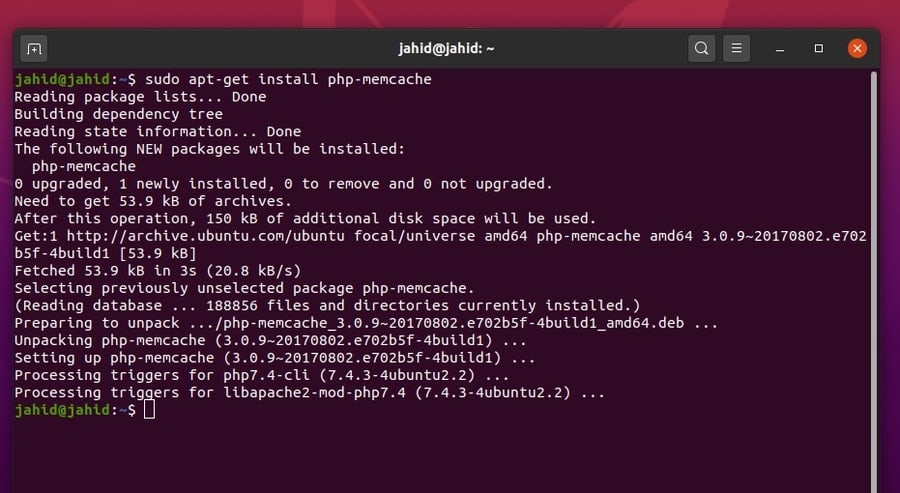
Then we can install the Memcache for PHP. We will use the usual
apt-get terminal command to install the PHP extension on our Ubuntu
Linux.
$ sudo apt-get install php-memcache
Step 5: Installing Apache and
Apache Library for PHP on Linux
Now, in this step, I am going to install the Apache server to
get better performance of PHP Memcache extension. To install the
Apache server on your Ubuntu Linux machine, simply follow the basic
apt-get command.
$ sudo apt-get install apache2
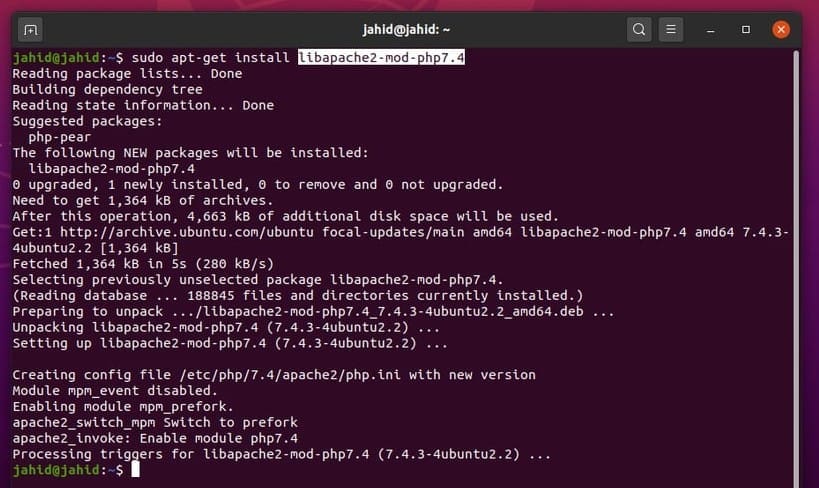
And then, you can install the library files for the Apache
server, which will make the Memcache extension smooth and
better.
$ sudo apt-get install libapache2-mod-php7.4
You can also download the PHP library file form the Ubuntu
package website. Then restart the Apache server.
$ /etc/init.d/apache2 restart
Download Apache Library for
PHP[5]
Step 6: Monitoring the
memcached Status on Ubuntu Linux
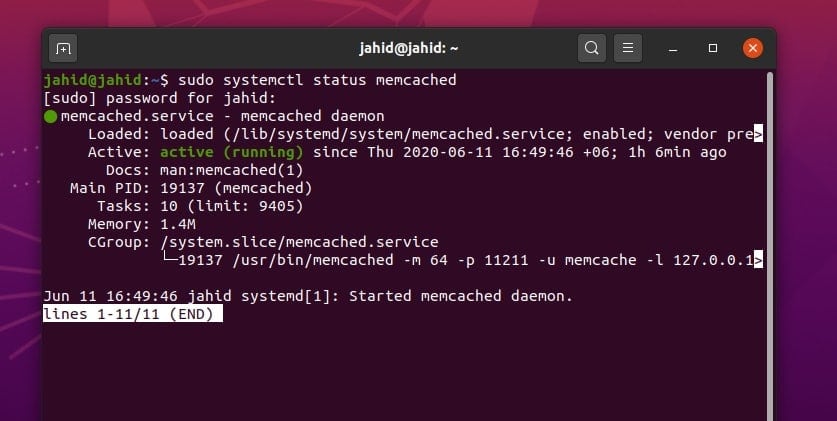
After all the settings and configurations are done, now it’s
high time to check whether the Memcached extension is functioning
properly or not. We can use the system status
systemctl command in the Ubuntu terminal to check the
status. As a result, we will get the service name, loaded status,
active status, process identification (PID) number, task number,
used memory, and other pieces of information.
$ sudo systemctl status memcached
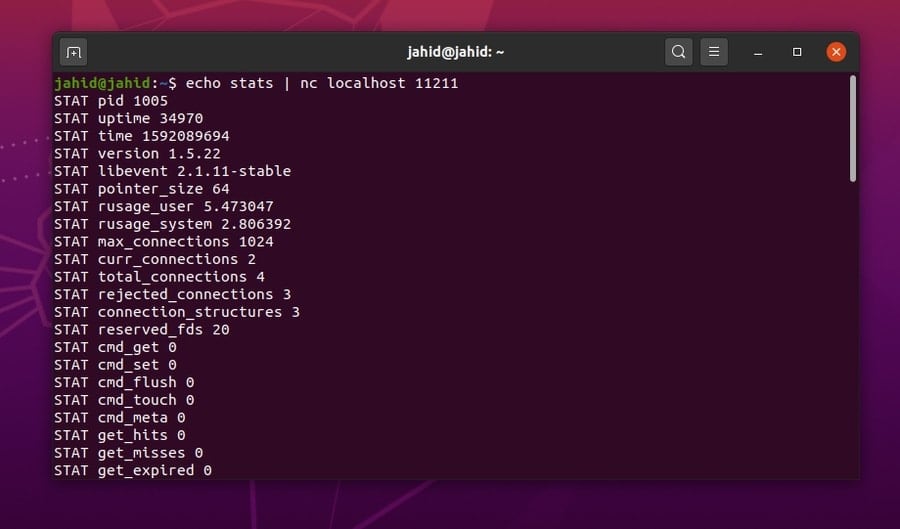
You can also check the Memcached status of your localhost
address by using the echo terminal script command. In this process,
you will be able to find out the PID, uptime, version, pointer
size, maximum connections, library status, total connections, and
other essential information. Don’t forget to add the NetCat
(nc) command before your address and put the Memcached
port after the address.
$ echo stats | nc localhost 11211
Step 7: Installing
memcached for Python on Ubuntu Linux
Till now, we have learned how to install the Memcached extension
for PHP and Apache servers. Now, we will know how to set up the
Memcached for Python in Linux. First, you need to check which
version of Python you are having inside your Linux machine. To
check the Python version, use the following terminal commands. The
Ubuntu 20.04 version has Python3 preinstalled.
$ python --version
$ python3 --version
If you can’t find any Python installed in your Linux machine,
you can use these terminal command line to get Python installed
inside your machine.
$ sudo apt-get install python
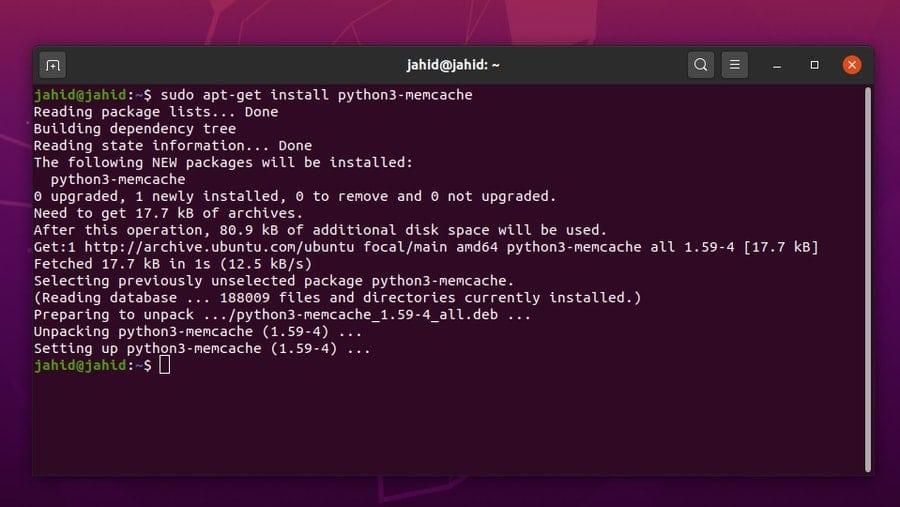
Now, to install the Python extension for the Memcache, use the
following apt-get terminal command lines according to your Python
version.
$ sudo apt-get install python-memcache
$ sudo apt-get install python3-memcache
Once the Memcached integrated extension is installed for Python,
then you can import the Memcache Python library from the terminal
command on Ubuntu Linux.
$ python3
>>> import memcache
>>>
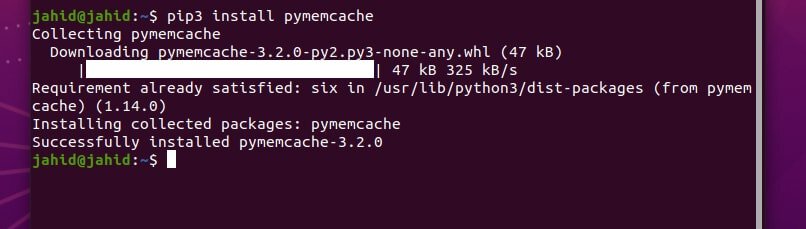
You can also install the Memcached extension using the Python
Package Index (PIP) commands. For that, first, you need to install
the PIP inside your Ubuntu Linux. Then you can install the
Memcached using the PIP command from the Ubuntu terminal shell.
$ sudo apt install python3-pip
$ pip3 --version
$ pip install pymemcache
$ pip3 install pymemcache
$ pip install python-memcached
$ pip3 install python-memcached
Step 8: Configuring Firewall
Settings on Ubuntu
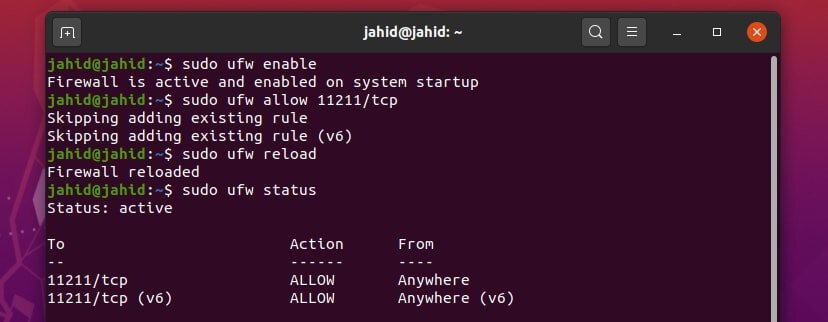
Here comes the mandatory part! While you install some
application that is related to the internet gateway, of course, you
need to get the firewall permission for that particular service.
Otherwise, who knows when the firewall will stop agreeing with your
rules and get your site out of gear. Here are the primary and basic
Uncomplicated Firewall (UFW) settings for Ubuntu Linux that you
should enable and change for your website to get the full Memcached
support.
$ sudo ufw enable
$ sudo ufw allow 11211/tcp
$ sudo ufw reload
$ sudo ufw status
Step 9: Checking the PHP
memcached Information in Linux
Alright, here we are at the very last stage of installing and
configuring the Memcached on Ubuntu Linux. We have already done the
possible Memcached settings to get the maximum efficiency for
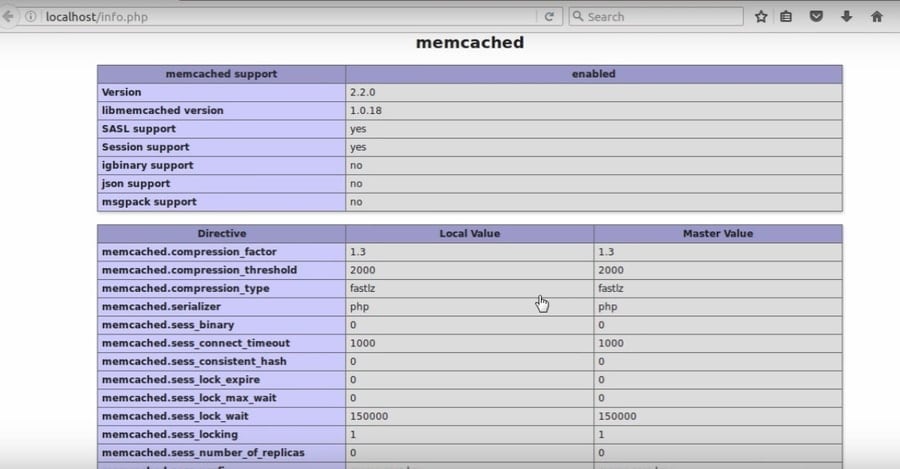
webpage loading. Now we can check the Memcached settings from the
Apache server have installed previously. For that, we need to
browse the localhost address and need to go to the info page by
adding a forward slash(/) and info after the address.
There will find specified information about the Memcached that we
have installed on our Ubuntu Linux.
Uninstalling the
memcached from Ubuntu
If something goes wrong and you have to start over the process
of installing the Memcached on your Ubuntu Linux from the very
beginning, or you need to uninstall the Memcached due to the server
failure here the handly method to uninstall and remove the
Memcached settings and log files from your Ubuntu Linux.
$ sudo apt-get remove memcached
$ sudo apt-get autoremove memcached
$ sudo apt-get purge memcached
$ sudo apt-get autoremove --purge memcached
Ending Words
Memcached is an open-source and free web application that is
used to reduce the loading time of any website or gaming stream.
Many tech giant companies use Memcached to reduce the loading time
of their website. Though the Memcached is very stable and works
fine with PHP and HTML, there are always positives and negatives of
anything. So before you start using the Memcached service, make
sure that your Linux system configuration is capable of loading and
holding the cache memory.
In this post, I have gone through the entire process of how to
install and configure the Memcached system on Ubuntu Linux. I have
explained all the phases step by step to make the notion of memory
caching more understandable. If you like this post, please share
this post on your social media. And, we also you can write any
comment in the comment section related to this post.
References
- ^
Joomla
(www.ubuntupit.com) - ^
Open
Source CMS: 25 Best Content Management System Tools
(www.ubuntupit.com) - ^
50
Productive and Practical grep Command for Linux Enthusiasts
(www.ubuntupit.com) - ^
Telnet
(en.wikipedia.org) - ^
Download
Apache Library for PHP (ubuntu.pkgs.org)
Read more https://www.ubuntupit.com/how-to-install-and-configure-memcached-on-ubuntu-linux/