A screenshot or snapshot is an image file that contains the
visual representation of the display at a given time. You can take
screenshots to capture your computer screen and share it among
friends or store it for future references. Screenshots have risen
to prominence due to the widespread rising of personal computing
devices. Devices like smartphones provide simple ways to capture
the screen. Computers, on the other hand, allows us to take
screenshots in a number of different ways. There are many splendid
Linux screenshot tools that can be used to capture the system
screen. Today, we are highlighting 20 such applications for our
readers.
There are a wide variety of Linux screen capture tools, both
graphical and console-based. We have selected the picks for this
guide based on their usage and popularity among Linux folks. You
should be able to choose the best screen capture tool once you have
completed this guide.
1. Shutter
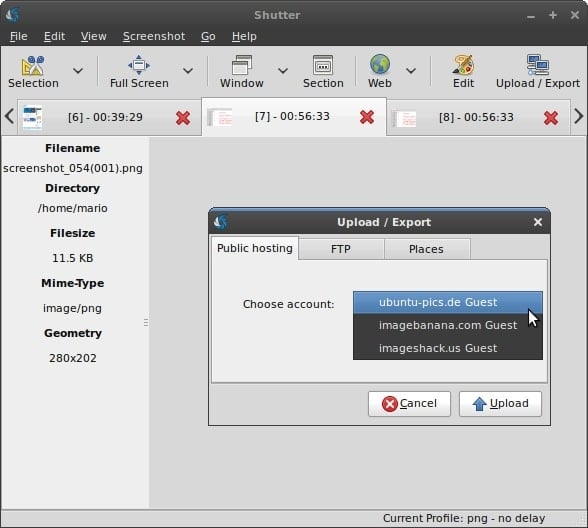
Shutter is a modern-day screenshot tool with a rich feature set.
It works on all major Linux distributions[1], including Debian and
Red Hat. You can capture the entire display, a selected area,
window, menu, or even a website using this simple application. It
is also possible to capture screens from the terminal using this
tool. Moreover, Shutter allows users to apply several effects on
the screenshot and makes it easy to host them on Linux hosting providers[2].
Install Shutter on Ubuntu
Simply open up a terminal and run the following command to
install Shutter on Ubuntu or its derivates.
$ sudo apt-get install shutter
If you want to install Shutter from the PPA, run the following
commands.
$ sudo add-apt-repository ppa:shutter/ppa
$ sudo apt-get update
$ sudo apt-get install shutter
2. Kazam
Kazam is a lightweight screenshot taker with additional support
for screencasting. Our editors really liked this tool due to its
simple yet easy to use interface. You can use Kazam to capture the
whole desktop screen or a selected area or even window. It also
provides a nice timer feature that will come handy during frequent
screen capturing. Additionally, Kazam employs on the fly encoding
as well as a silent mode.
Install Kazam on Ubuntu
You can install Kazam by running the below command in Ubuntu or
other Debian-based distributions.
$ sudo apt-get install kazam
You should install Kazam using the PPA if you want to get the
latest versions without having to wait for it to be added to the
stable repository. Use the following commands to do this.
$ sudo add-apt-repository ppa:kazam-team/stable-series
$ sudo apt-get update
$ sudo apt-get install kazam
3. Gnome Screenshot
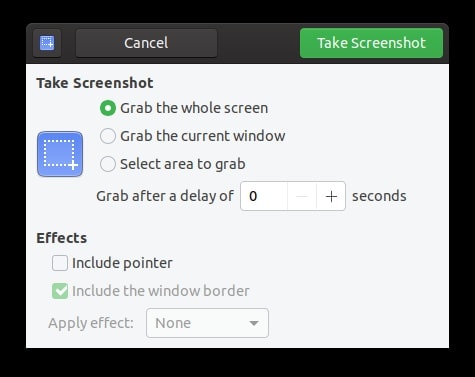
Gnome Screenshot is a minimalist application for taking instant
snapshots of the desktop or a particular window. It is the default
Ubuntu screenshot tool and is invoked when you use the PrtSc
key for taking screenshots. This lightweight tool is particularly
suitable for old machines with limited resources. The Gnome
Screenshot tool also allows users to set an interval before a snap
is taken. So, if you’re looking for a simple yet practical snapshot
tool, it is the application for you.
Install Gnome Screenshot on
Ubuntu
Gnome Screenshot comes pre-installed with both standard and
minimal Ubuntu installations. Thus, you do not have to install this
manually. You can still install this on other systems.
$ sudo apt-get install gnome-screenshot
Use the following command to use it from the terminal.
$ gnome-screenshot -d 10
It will take the snapshot after a delay of 10 seconds.
4. ScreenCloud
ScreenCloud is one of the best Linux screenshot tools for modern
users. It provides a simple method for taking snapshots and offers
features like automatic image upload to cloud services, screenshot
editing, and instant sharing among friends. This is a
multi-platform app, so it is suitable for people who also have Mac
or Windows systems. Moreover, ScreenCloud supports a plethora of
external plugins which can be installed for extended
functionalities.
Install ScreenCloud on
Ubuntu
You can install this Ubuntu screenshot tool from the snap store.
To install this from your Linux terminal emulator[3], run the following
command.
$ sudo snap install screencloud
However, if you do not want to use the snap version, you can
compile the binary from the source. Follow this tutorial to compile ScreenCloud on
Ubuntu.[4]
5. Scrot
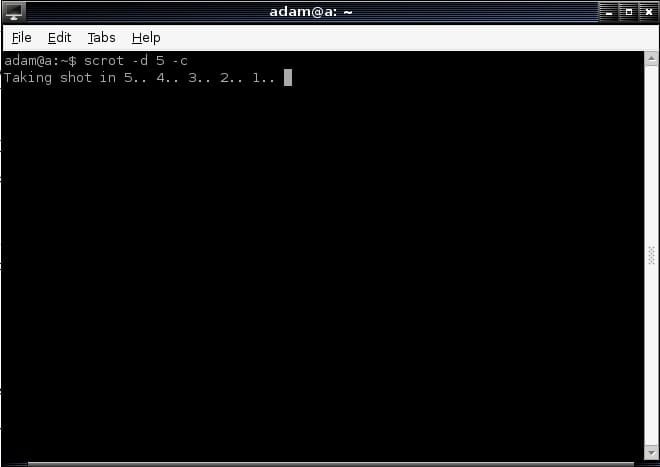
Scrot is an excellent command-line utility that allows users to
take snapshots of the whole screen or a particular window. It has
in-built support for multiple image formats, including JPEG, PNG,
and GIF. One key feature of Scrot is the option to take automatic
screenshots by implementing it as a Linux cron job[5]. Other features of this
tool include the ability to adjust image quality and taking
snapshots of remote machines.
Install Scrot on Ubuntu
You can install Scrot on Ubuntu by running the following simple
command.
$ sudo apt-get install scrot
You can also install it from the source. Use the following Git
command to download the source.
$ git clone https://github.com/resurrecting-open-source-projects/scrot
Now, run the following terminal commands.
$ ./autogen.sh
$ ./configure
$ make
$ su -c "make install"
6. Gimp
Gimp[6]
is a free and open-source graphics editor[7] that allows Linux users
to take screenshots of their system. This GTK application is
extremely extendable and supports additional scripting features.
Gimp can be used to take screenshots of the whole desktop, a
particular window, or a selected region. Thus, if Gimp is already
installed in your system, you can use it to take screenshots
without the need to install a whole new application for this.
Install Gimp on Ubuntu
Gimp is available on the Ubuntu official repositories as well as
a snap application. You can install it on Ubuntu by running one of
the following commands.
$ sudo apt-get install gimp       # install from stable repository
$ sudo snap install gimp          # install from snap store
7. Flameshot
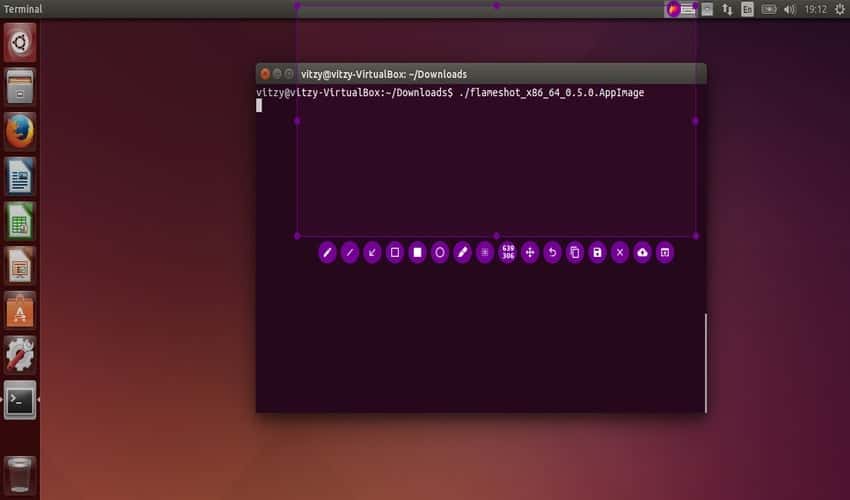
Flameshot is a powerful Linux screen capture tool with a lot of
features. It allows users to take quick snapshots of the entire
desktop or a selected window/region. Flameshot is highly
configurable and makes it possible to take screenshots from the
terminal. It provides excellent editing features for snapshots as
well as DBus interface, and an uploading facility to the popular
image hosting platform Imgur. Moreover, the easy to use hotkeys of
this tool are very handy.
Install Flameshot on Ubuntu
You can use the apt package manager to install Flameshot on
Ubuntu easily. Simply run the below command to do this.
$ sudo apt-get install flameshot
Run the following commands if you wish to install it from the
source.
$ sudo apt install g++ build-essential qt5-default qt5-qmake qttools5-dev-tools
$ sudo apt install libqt5dbus5 libqt5network5 libqt5core5a libqt5widgets5 libqt5gui5 libqt5svg5-dev
$ sudo apt install git openssl ca-certificates
$ mkdir build
$ cd build
$ qmake ../
$ make
$ su -c "make install"
8. Spectacle
Spectacle is a simple screenshot taker application built for the
KDE ecosystem[8]. It provides an elegant
GUI interface for capturing the whole screen, the active window, a
selected window, or a particular region. The images can be saved
as-is or can be exported as well. The delay feature of this
application allows users to set a timer before the screen is
captured. Moreover, users can either include the mouse cursor or
exclude it from the final image.
Install Spectacle on Ubuntu
Spectacle requires some KDE dependencies and is available on
both the stable repository and in the snap store. You can install
Spectacle by running one of the following commands in your Linux
terminal emulator.
$ sudo apt-get install kde-spectacle      # install from stable repository
$ sudo snap install spectacle             # install from snap store
9. Collabshot
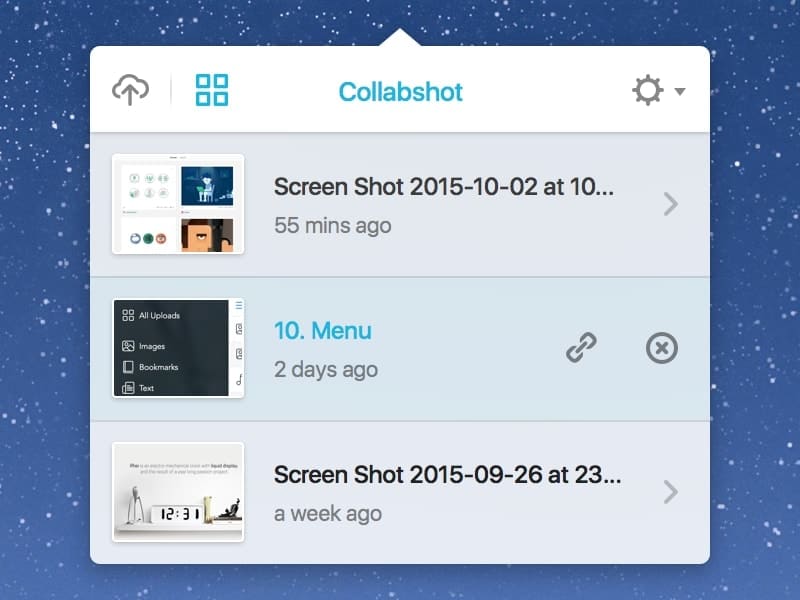
Collabshot is one of the feature-rich Linux screenshot tools of
recent times. It is a real-time screen grabber that is built to fit
modern requirements. Users can take instant screenshots of their
desktops, and a link will be added to the clipboard for sharing it
with friends right away. All the images are stored on the web for
better accessibility and storage. Moreover, Collabshot also offers
support for live, multi-person sketching, and chat communications[9].
Install Collabshot on Ubuntu
Collabshot is not available in the official Ubuntu repositories
yet. It can be installed using the Appimage. Simply download the
Collabshot Appimage package from its website. Now, right-click on it and
enable execution permission to run the app. [10]
10. ImageMagick
ImageMagick is a free yet powerful editing application for Linux
distributions. However, it also allows users to take a full or
partial screenshot of their system. So, if you already have
ImageMagick installed, you do not need to install other Linux
screenshot tools. To take a snapshot, you need to use the
import-im6.q16 program of the ImageMagick package.
Use the below command to save the entire desktop screen.
$ import -window root desktop.png
To save a particular window, use the following command. It will
change the cursor to a crosshair. Now, click on a window and import
will grab that screen.
$ import window.png
Install ImageMagick on
Ubuntu
ImageMagick should be installed during a normal Ubuntu
installation. However, if your system does not have it, use the
following command to install this package.
$ sudo apt-get install imagemagick
11. Gyazo
Gyazo is an easy to use Ubuntu screen capture tool that can be
used to take screenshots on the fly. It allows users to select an
area of the screen, save it, upload the image, and grab the URL.
Moreover, Gyazo also supports screencasting features which allow
for fullscreen video capturing[11] in HD formats. Thus, it
is a suitable choice for people who are looking for flexible Linux
screenshot tools with support for both image and video capture.
Install Gyazo on Ubuntu
Run the following commands in your terminal application to
install Gyazo on your Ubuntu machine.
$ curl -s https://packagecloud.io/install/repositories/gyazo/gyazo-for-linux/script.deb.sh | sudo bash
$ sudo apt-get install gyazo
12. ksnip
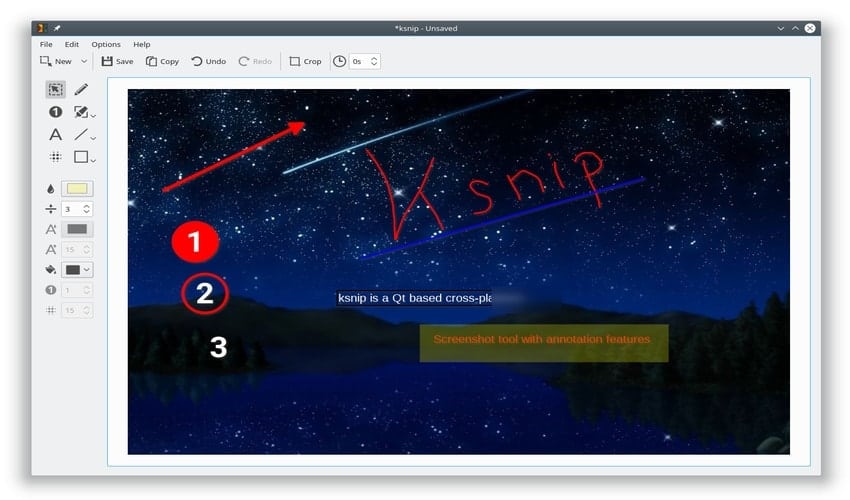
ksnip is an awesome Qt-based application for taking snapshots
and editing them on Linux machines. It is loosely inspired by the
Windows Snipping Tool and offers additional features for Linux. It
offers a nice, graphical interface and allows capturing the entire
desktop, a selected window, a specific area, and more. Moreover,
ksnip comes with default support for a command-line mode and can
upload captured snapshots to Imgur directly.
Install ksnip on Ubuntu
ksnip is available as a snap package on the snap tore. Run the
following command to install this Linux screen capture tool on your
Ubuntu machine.
$ sudo snap install ksnip
You can also download the Debian binary installation package
from the release page of ksnip[12] and install it by
running the following commands.
$ curl -L --output ksnip.deb <KSNIP-VERSION.deb>     # replace < > with actual URL
# download v1.6.2 by running the following

$ curl -L --output ksnip.deb https://github.com/ksnip/ksnip/releases/download/v1.6.2/ksnip-1.6.2.deb
$ sudo dpkg -i ksnip*.deb
13. Lightscreen
Lightscreen is another simple but useful screen capture tool for
Linux. It focuses largely on automating the process of saving and
tagging screenshots. Lightscreen provides excellent accessibility
by means of a flexible system tray and offers features like an
integrated image viewer and configurable global hotkeys, among
others. The images can also be uploaded to Imgur for easy storage
and sharing. It is available for Windows alongside major Linux
distributions.
Install Lightscreen on
Ubuntu
Lightscreen does not provide pre-built binaries for Linux. So,
users need to compile it from the source. You can download and
compile the package by running the following commands in the
terminal.
$ curl -sL --output lightscreen.tar.gz https://github.com/ckaiser/Lightscreen/archive/v2.4.tar.gz
$ tar zxvf lightscreen.tar.gz
$ ./configure
$ make
$ su -c "make install"
14.
xfce4-screenshooter
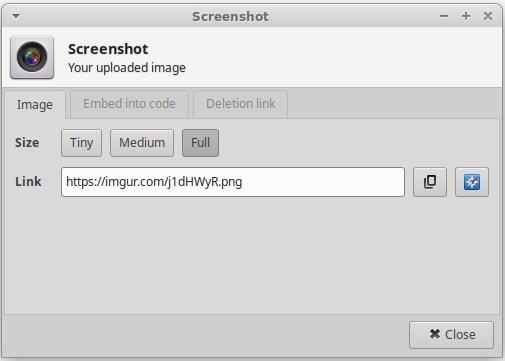
xfce4-screenshooter is one of the most lightweight Linux
screenshot tools you can use to take snapshots. It is the default
screenshot utility for the XFCE environment[13] and thus works very
well on older computers. It allows users to take either full
screenshots or for a selected window or region. Although minimalist
in nature, xfce4-screenshooter offers additional support for Imgur
uploads as well as delay timers, image previews, and quick
sharing.
Install xfce4-screenshooter on
Ubuntu
You can install the xfce4-screenshooter package easily on Ubuntu
by running the below command in your terminal.
$ sudo apt-get install xfce4-screenshooter
15. Nanoshot
Nanoshot is another simple yet practical screenshot taker that
runs well on legacy hardware. You can take screenshots of the
current window, a specific window, and the entire desktop. It also
supports full-size screenshots as well as taking snapshots from web
pages. Moreover, Nanoshot allows the user to take screenshots from
video files using the using Gstreamer and Mplayer utilities.
Install Nanoshot on Ubuntu
You can install Nanoshot on Ubuntu by running the following
commands.
$ sudo add-apt-repository ppa:nanoshot/ppa
$ sudo apt-get update
$ sudo apt-get install nanoshot
16. HotShots
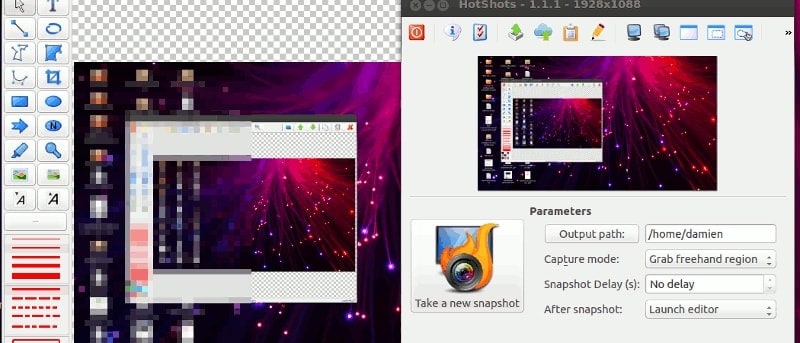
HotShots is a multi-platform screen capture tool built on top of
Qt. It runs on all major Linux distributions[14] as well as Windows. The
main offering of HotShots is its built-in snapshot editor that
allows users to edit the screenshots right after they are taken.
This allows users to annotate the image, draw shapes, and apply
effects. Additionally, HotShots can upload the images over FTP and
other image hosting services like Imgur and FreeImageHosting.
Install HotShots on Ubuntu
You can install the HotShots package by adding its PPA on
Ubuntu. Use the following commands to do this.
$ sudo apt-add-repository ppa:dhor/myway
$ sudo apt-get update
$ sudo apt-get install hotshots
17. xwd
xwd or X Window Dump is a very flexible terminal package that
can be used for taking screenshots on Linux. It is one of the best
command-based Linux screenshot tools and works extremely well with
cron jobs. Moreover, you can use xwd to capture screenshots on
remote machines over ssh. Use the following command to capture the
entire screen.
$ xwd -root > screenshot.xwd
It will save the image as screenshot.xwd. To
convert this image to PNG, use the convert tool of the ImageMagick
suite. The next command creates a PNG image from
screenshot.xwd called
image.png.
$ convert screenshot.xwd image.png
To take a snapshot of a specific window, use the first command
without the -root option and select the window
using the resultant crosshair.
Install xwd on Ubuntu
xwd will be available on all systems that have the X window
system installed. So, you do not need to install it manually.
18. Screener
Screener is a Linux terminal app that allows users to take
snapshots easily. It can be used for taking fullscreen snapshots as
well as for a selected area of the screen. Screener also offers a
timer feature and cloud vision, the ability to select text from the
screenshot. Moreover, Screener also provides the capability of
uploading images to Imgur. A GUI version of this app also exists,
which is called ScreenerQt.
Install on Ubuntu
Screener is available as a snap package, which can be installed
by running the below command.
$ sudo snap install screener
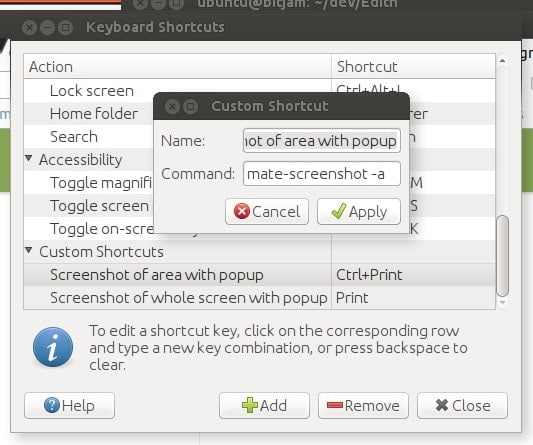
19. Mate Screenshot
Mate Screenshot is one of the simplest Linux screenshot tools
you can install on your Ubuntu machine. It allows users to take
screenshots from either the GUI interface or from the command-line.
The application allows us to take snapshots of a particular region
of the screen, a specific window or the whole desktop screen. It is
also possible to beautify the border using effects and set time
intervals.
Install Mate Screenshot on
Ubuntu
You need to install the mate-utils package to use this Ubuntu
screenshot tool. You can do this by running the following simple
command.
$ sudo apt-get install mate-utils
20. Lookit
Lookit is a simple and free snapshot taking application that can
be installed on most Linux distributions. It allows users to take
quick screenshots and upload them using FTP or SSH. Images can also
be shared on Imgur. Users can take fullscreen screenshots as well
as pictures of a selected region or desktop window.
Install on Ubuntu
You can install Lookit on Ubuntu by running the following
commands in your terminal.
$ sudo add-apt-repository ppa:lookit/daily
$ sudo apt-get update
$ sudo apt-get install lookit
Ending Thoughts
Although there are quite a lot of Linux screenshot tools, not
every application is suitable for your system. While tools like xwd
and import are almost always available, most systems will have at
most one GUI application dedicated to taking snapshots. We have
outlined 20 commonly used Linux screen capture tools that may be
useful to you. The selected items are ordered randomly. So don’t
feel bad if one of your favorite application is at the bottom half.
You should try out one or two from these 20 tools and pick the
right one for you based on your system configuration and desktop
environment.
References
- ^
major
Linux distributions (www.ubuntupit.com) - ^
The 20
Best Linux Web Hosting for Personal Sites and Enterprises
(www.ubuntupit.com) - ^
Linux
terminal emulator (www.ubuntupit.com) - ^
tutorial
to compile ScreenCloud on Ubuntu.
(github.com) - ^
Linux
cron job (www.ubuntupit.com) - ^
Gimp
(www.ubuntupit.com) - ^
20
Vector Graphics Software For Linux: Tools To Create Beautiful
Designs (www.ubuntupit.com) - ^
How To
Customize Your KDE Plasma Desktop’s Look and Feel
(www.ubuntupit.com) - ^
Top 20
Best Linux VoIP and Video Chat Software in 2020
(www.ubuntupit.com) - ^
its website
(www.collabshot.com) - ^
video capturing
(www.ubuntupit.com) - ^
release page of ksnip
(github.com) - ^
The 20
Best Xfce Themes for Linux System in 2020
(www.ubuntupit.com) - ^
major
Linux distributions (www.ubuntupit.com)
Read more https://www.ubuntupit.com/best-linux-screenshot-tools/