The cURL utility is a simple yet powerful command-line tool for
transferring files to/from remote locations. Its full form stands
for ‘Client URL’. It has cemented its position as one of the best
tools for remote data transfer over the internet. cURL offers a
robust collection of commands that enable many advanced
functionalities. Additionally, most curl command in Linux works
exceptionally well for headless agents and/or automated scripts. To
help you get started with cURL, our editors have compiled this
thoughtfully curated introductory guide. Although it’s meant as a
starting point for beginning Linux users, seasoned users can use it
as a reference guide.
Essential cURL Command in Linux
The cURL utility supports a wide variety of protocols and
features. We’ve outlined the essential commands with appropriate
examples and suggest readers try them interactively for gaining
first-hand experience on them. As with any Linux tool, your
expertise with cURL will only grow when you continue to use it in
everyday life.

cURL Syntax and Usage
The cURL utility supports a plethora of communication protocols
like HTTP, HTTPS, FTP, SSH, and so on. You can find the entire list
of supported protocols in RFC 3986[1]. The below line will
demonstrate the basic syntax of cURL.
curl [options] [URL...]
URL(s) is the remote address for your communication, and options
consist of parameters like cookie setting, proxy, SSL, and so on.
Most modern Linux and BSD systems[2] should have cURL
installed. If not, you can easily install it from your package
manager.
1. Download a Single File
When you specify no additional options for curl, it will simply
fetch the data using the default communication protocol HTTP. The
below command will retrieve the source code for the given site.
$ curl www.example.com
We’ve used a placeholder domain name for our demonstration
purpose. You will need to replace that with a real domain name in
order to see a practical result. After curl has finished, simply
list your current directory for viewing the downloaded file.
2. Download and Rename Files
As you can guess, simply downloading the source of a website is
rarely useful to normal users. Thankfully, you can easily specify
what file to download. Take a look at the below example to see this
in action.
$ curl -o pic-of-the-day.jpg https://apod.nasa.gov/apod/image/1912/Orava_Duskova_WinterHexagon.jpg
This command downloads the astronomy picture of the day from
NASA and saves it as pic-of-the-day.jpg. The
-o option allows you to do this. This option is
actually not required. However, if you don’t use this, cURL will
show the binary output in the STDOUT, causing a
mess of your terminal.
3. Download and Save Files
We can also download files and save them using their default
names. You’ll need to utilize the -O option for
this purpose. The below command demonstrates this using the same
image file in the above example.
$ curl -O https://apod.nasa.gov/apod/image/1912/Orava_Duskova_WinterHexagon.jpg
$ curl --remote-name https://apod.nasa.gov/apod/image/1912/Orava_Duskova_WinterHexagon.jpg
Please note the omission of the filename parameter used earlier.
cURL simply extracts the filename of this image from its URL and
saves it using that.
4. Download Multiple Files
cURL also allows us to download multiple files at the same time.
It’s pretty straightforward, and all you need to do is supply their
URLs one after another after the -O option.
$ curl -O https://apod.nasa.gov/apod/image/1912/Orava_Duskova_WinterHexagon.jpg \
-O https://persiadigest.com/uploads/gallery/1547451742.jpg \
-O https://persiadigest.com/uploads/gallery/1547452172.jpg
This command will download the three images specified by their
URLs and save them using their default names. The backslash
‘\’ is used for spanning the entire command into
multiple lines in the terminal.
5. Resuming Downloads
Sometimes your downloads may get interrupted for some reason.
Thankfully, cURL allows us to resume paused downloads using the
-C option. This option requires an offset to
determine from where to continue the download. This offset is the
exact number of bytes that have been downloaded already, and you
want to skip.
$ curl -C- -O https://persiadigest.com/uploads/gallery/1547452172.jpg
$ curl --continue-at - -O https://persiadigest.com/uploads/gallery/1547452172.jpg
By adding the – after -C, we
tell cURL to guess the offset by itself. It’s a handy way that
saves us the trouble of manually checking the downloaded
amount.
6. Download Files using Parts of URLs
The cURL command in Linux allows us to select parts of URLs by
specifying them as a set inside square braces. Take a quick look at
the below illustrations to see them in action.
$ curl -O https://persiadigest.com/uploads/gallery/1547452[200-300:25].jpg
This command will download 5 files. The first one is the
1547452200.jpg file from the above URL, and the next 4
will increase with the step value 25.
7. Retrieve URLs from Files
It’s possible to download remote data using URLs from a file.
You’ll need to leverage xargs[3]
for this purpose. First, create a test file containing the URLs for
your files. Now, take a look at the next example to understand how
this works.
$ xargs -n 1 curl -O < urls.txt
I’ve used a file named urls.txt for this example, which
contains some of the URLs we used earlier. cURL will fetch them one
after another in a sequence and save the files using their default
name on the remote server.
8. Retrieve URL Headers
HTTP headers may contain several name-value pairs which enable
the client or server to transmit additional information regarding a
web request/response. They usually contain information like content
type, user agent, and encoding. The -I option
tells cURL to fetch this data from remote servers.
$ curl -I https://www.ubuntupit.com/
$ curl --head https://www.ubuntupit.com/
The above commands are equivalent and retrieve many important
staffs like the HTTP response code, information about content, and
cookies among others.
9. Check Whether a Site Supports HTTP/2
The HTTP/2 is a significant revamp of HTTP and will replace it
as the standard web protocol in the future. Many sites have started
to adopt it, and you can easily check whether a site supports
HTTP/2 or not using the below cURL command in Linux.
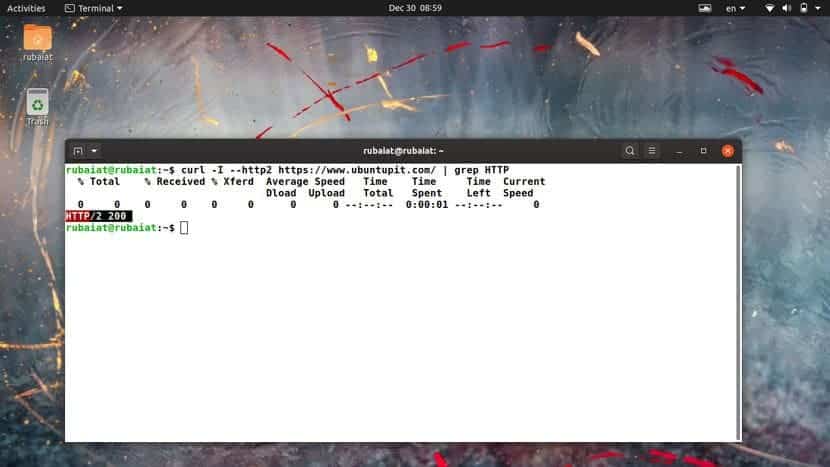
$ curl -I --http2 https://www.ubuntupit.com/ | grep HTTP
We’re simply piping the output of curl to grep for checking the
availability of HTTP/2. You can check our thorough guide on grep to
understand this command in more detail. If the server supports this
protocol, it will return a line containing HTTP/2 200.
10. Follow HTTP Redirects
Sometimes you may query for a file that’s been moved to a
different server. By default, curl returns the new location of this
file but doesn’t follow the new location. You can tell curl to
follow the redirects in such situations by using the
-L or –location option, as
demonstrated below.
$ curl google.com
$ curl -L google.com
$ curl --location google.com
The first command tries to fetch the non-www version of the
Google search. It results in a message which indicates that this
site has been moved to a new location. The latter two commands,
however, query the new locations.
11. Limit Transfer Rate
The cURL command in Linux allows us to limit the transfer rate
using the –limit-rate parameter. This is a useful
feature for Linux shell scripts[4]
or automated jobs like CRON.
$ curl --limit-rate 1m -O https://github.com/JetBrains/kotlin/releases/download/v1.3.61/kotlin-native-linux-1.3.61.tar.gz
This command downloads the Kotlin installation package for Linux
from its GitHub repo. It restricts the retrieval speed to a maximum
of 1 megabyte (MB) and saves the file using its default name.
12. Download Files Based on Modification
Date
You can tell cURL to only fetch a file if it has been modified
after/before a pre-defined date. The -z option is
used for specifying the date parameters, as shown by the below
examples.
$ curl -z 01-Dec-19 -O https://persiadigest.com/files/en/news_albums/7596/83/thumbnails/thm_4188_934.jpg
$ curl --time-cond 01-Dec-19 -O https://persiadigest.com/files/en/news_albums/7596/83/thumbnails/thm_4188_934.jpg
This command will download the picture lead by the URL if it’s
modified after the first of December 2019. We can say that it’s not
the case since curl aborts the download without any message.
$ curl -z -01-Dec-19 https://persiadigest.com/files/en/news_albums/7596/83/thumbnails/thm_4188_934.jpg
Now, this time cURL will download this file because we’ve
specified the date to be before December 01, 2019. Notice the
preceding – before the date expression.
13. Send HTTP URL Authentication
The curl command allows users to pass authentication information
for remote servers. This comes in handy when fetching documents
from sites protected via credentials. We’re demonstrating a simple
mock example to illustrate this issue for our audience below.
$ curl -u USER: PASSWORD www.example.com/some/file
$ curl --user USER: PASSWORD www.example.com/some/file
So, curl tries to fetch the document via validating your login.
The -u option takes a username-password combo to
enable curl to do this. We can also use other authentication
schemes like NTLM.
14. Download Documents via FTP
We can very easily leverage cURL to send or receive files from
FTP servers. The below commands will illustrate how to establish an
FTP connection using the cURL command in Linux. You’ll also learn
how to download documents from remote FTP
servers.[5]
$ curl -u FTP_USER:FTP_PASSWORD ftp://ftp.example.com/public/dir/
This command will connect to the mock server over FTP using the
specified credentials. It will list all documents inside
/public/dir/ since it’s a directory. However, if
we point curl to a file, it’ll download it directly.
$ curl -u FTP_USER:FTP_PASSWORD -O ftp://ftp.example.com/public/dir/image.jpg
This command will download the image.jpg file in your
local directory.
15. Upload Documents via FTP
Uploading documents to FTP servers is also pretty
straightforward. All you need to do is pass the -T
option, followed by the name of your file or files. The following
examples demonstrate how to upload a single file, multiple files,
and a range of files over FTP.
$ curl -T image1.jpg -u FTP_USER:FTP_PASSWORD ftp://ftp.example.com/public/dir/
$ curl -T image1.jpg image2.jpg image3.jpg -u FTP_USER:FTP_PASSWORD ftp://ftp.example.com/public/dir/
$ curl -T image[4-10].jpg -u FTP_USER:FTP_PASSWORD ftp://ftp.example.com/public/dir/
The first command uploads the file image1.jpg to the
/public/dir directory. The second one uploads all
three files, and the last example uploads image4.jpg to
image10.jpg. You can also use
–upload-file as a substitute for
-T if you want.
16. Send Form Data
The cURL utility makes it effortless to transfer form data using
the HTTP POST request. You can upload not only text but also binary
data. So, it’s possible to send both files and text input.
Additionally, curl allows you to specify the content type.
$ curl -F 'username=user' 'password=userpassword' www.example.com/login
$ curl -F 'username=user' 'password=@/etc/passwd' www.example.com/login
$ curl -F 'username=user' 'password=<passfile' www.example.com/login
The first example sends the form values as strings while the
second one sends a string for the username and uploads the file
/etc/passwd. Finally, the last example creates a form
field called password and sends its value from the file
passfile.
17. Set Personalized User-Agent
When you send an HTTP request, it contains the information about
your client using the user agent field. By default, cURL command in
Linux will send curl/<version> as the user agent.
Many admins block such requests to prevent potential scraping
attempts. So, it’s a good practice to change the user agent into
something more common.
$ curl -A "Mozilla/5.0 (X11; Linux x86_64; rv:60.0) Gecko/20100101 Firefox/60.0" https://getfedora.org/
$ curl --user-agent "Mozilla/5.0 (X11; Linux x86_64; rv:60.0) Gecko/20100101 Firefox/60.0" https://getfedora.org/" \
www.example.com
You can use either -A or
–user-string as they are equivalent.
18. Send POST Requests
The HTTP protocol allows multiple request methods for
communicating with remote servers. Each method has its own purpose,
such as POST for posting data, PUT for updating data, and DELETE
for deleting. By default, cURL performs an HTTP GET request that
simply fetches the specified data.
$ curl -d "username=user&password=passphrase" -X POST www.example.com/login
$ curl --data "username=user&password=passphrase" -H "Content-Type: application/x-www-form-urlencoded" -X POST www.example.com/login
The first command performs a POST method that supplies a
username-password combination to the remote server. The second
example denotes the content type. Another commonly used type is
application/json.
19. Send PUT Requests
HTTP PUT requests allow users to update the value of a field
over remote connections. It works almost similar to the above curl
command, as shown in the below example.
$ curl -d "{\"parameter\":\"value\"}" -H "Content-Type: application/json" -X PUT www.example.com/api
$ curl --data "{\"parameter\":\"value\"}" -H "Content-Type: application/json" -X PUT www.example.com/api
This command updates the value of the parameter field with the
supplied value. Here, we’ve sent data for a remote JSON object.
20. Send DELETE Requests
The HTTP DELETE verb enables us to remove a value from a remote
field. It’s often used in Linux bash scripts and offers great
flexibility.
$ curl -d "{\"parameter\":\"value\"}" -X "DELETE" www.example.com/api
$ curl --data "{\"parameter\":\"value\"}" -X "DELETE" www.example.com/api
The above command will send a delete request to our mock API.
You can specify additional options, such as encoding and file
parameters.
21. Save Website Cookies
Cookies are small pieces of data sent to your system by remote
servers when you visit a page there. They’re usually used for
increasing the user experience. The curl command allows us to save
cookies from a website for later inspection. This is a
straightforward task and requires a simple option called
–cookie-jar.
  $ curl --cookie-jar up-cookies.txt https://www.ubuntupit.com/
$ curl --cookie-jar persia-cookies.txt https://persiadigest.com/uploads/gallery/1547451742.jpg -O
$ curl --cookie-jar - https://persiadigest.com/uploads/gallery/1547451742.jpg
The first command will store the cookies in a file named
up-cookies.txt, and the second one will download the cookies to
persia-cookies.txt. You can also print the output to
STDOUT by replacing the filenames with
‘-‘ hyphen or dash.
22. Send Cookies via cURL
The curl command also enables us to send data as cookies to
remote HTTP servers. You will need to utilize the
-b or –cookie option for this
purpose, as demonstrated by the below examples. You need to pass
the data in name-value pairs separated by equal signs.
$ curl --cookie up-cookies.txt https://www.ubuntupit.com/
$ curl -b "USER_TOKEN=Yes" https://www.ubuntupit.com/
The first example sends back the cookies received from the
previous command. The last example specifies the cookie data inside
double-quotes.
23. Use Proxy with cURL
Linux curl command allows users to use HTTP proxies. If not
specified, the default port is assumed to be 1080. Since all
communications made over an HTTP proxy is converted to HTTP, some
protocol-dependent functionalities might become unavailable.
$ curl -x 192.168.99.1:8888 http://example.com/
$ curl -U user:passphrase -x 192.168.99.1:8888 http://example.com/
The first command utilizes the proxy
192.168.99.1 on the specified port. The second
example demonstrates how to pass server authentication information
using the -U flag.
24. Customize Name Resolutions
Often site admins want to test their websites locally before
making them available to the rest of the word. The following cURL
command in Linux will illustrate how to resolve domain names for
this purpose.
$ curl --resolve www.example.com:80:localhost http://www.example.com/
Now curl will request the site from your
localhost instead of the domain name. It will
refrain from using the DNS or /etc/hosts information.
25. Send Emails using cURL
We can leverage the curl command for sending emails from
automated CRON jobs[6]
or scripts. The cURL utility uses the SMTP(Simple Mail Transfer
Protocol) for this job. You’re required to provide information such
as address details and mail server alongside the message.
$ curl --mail-from admin@test.com --mail-rcpt user@test.com smtp://testmailserver.com
When you press enter, this command will expect you to type in
the email data. Simply type them as you would in a normal GUI.
You’ll need to type a period ‘.’ sign at the last
line of your message. This will send the message and exit the
command.
26. Set Timeout for Operations
Although many curl commands have a default timeout, it’s not the
case with all options. The curl utility allows us to specify the
time limit for operations like downloads or uploads. The
-m or –max-time options can be
used to enable this, as illustrated in the below examples.
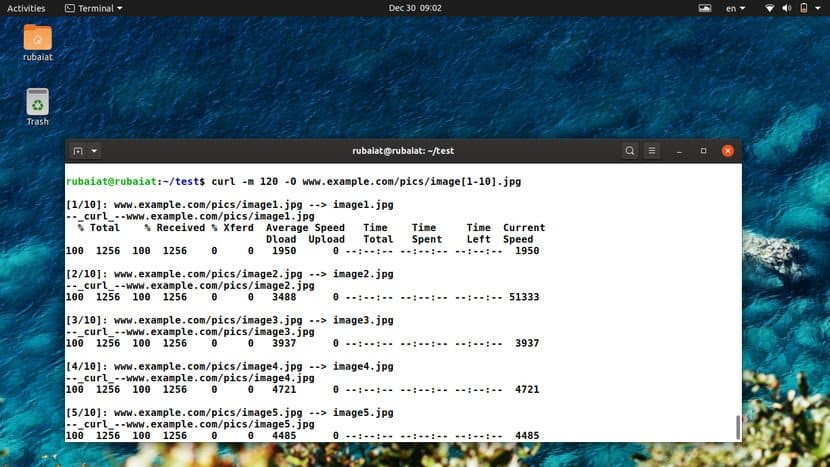
$ curl -m 120 -O www.example.com/pics/image[1-10].jpg
$ curl --max-time 120 -O www.example.com/pics/image[1-10].jpg
The timeout options are in seconds. So these commands will be
active for 2 minutes and then abort no matter whether the image
downloads are complete or not.
27. Set Connection Timeouts
Contrary to operation timeouts, connection timeouts only specify
the maximum amount of time curl spends behind to establish a remote
connection. The curl command exposes the
–connect-timeout option to do this. It’s also
provided in seconds. Take a quick glance at the next example to see
this in action.
$ curl --connect-timeout 60 -O www.example.com/pics/image[1-10].jpg
Now this time curl will allow a maximum of 60 seconds for
connection establishment. If it can’t connect to the external
resource within 1 minute, it will abort the operation.
28. Split Large Downloads
Sometimes you may want to download a large file in chunks of
various sizes. It’s a useful feature for automated scripts or when
you need to cap the download amount. The –range
option provides a dynamic way to handle this using curl, as
demonstrated below.
$ curl --range 0-99999999 -O https://osdn.net/dl/manjaro/manjaro-xfce-18.1.4-191210-linux54.iso
$ curl --range 100000000-199999999 -O https://osdn.net/dl/manjaro/manjaro-xfce-18.1.4-191210-linux54.iso
$ curl --range 200000000- -O https://osdn.net/dl/manjaro/manjaro-xfce-18.1.4-191210-linux54.iso
The above commands will download the XFCE image for Manjaro in
different parts. The first line will download the first 100 MB, and
the second line will fetch the next 100 MB. The last line will
download the rest of the image, starting at 200 MB. You can then
use the cat command to merge the entire download.
29. Suppress Output and Errors
The curl command allows you to enable silent mode. In this mode,
curl will refrain from displaying the progress bar and error
messages, if any. However, you’ll still get the data you request in
your terminal. To redirect it to a file, you can use either the -O
or -o option.
$ curl -s -O https://www.example.com/picture.jpg
$ curl --silent -O https://www.example.com/picture.jpg
The above commands are equivalent and stop curl from displaying
any terminal output at all. This is a useful feature for writing
shell scripts.
30. Enable Fail Mode
The fail mode allows curl to suppress any output on server
errors. Normally in the case of silent mode, curl will download an
HTTP document that states the state of the requested resource. But,
enabling fail mode makes curl stop whenever it encounters an error
on the server-side.
$ curl -f -O https://www.example.com/picture.jpg
$ curl --fail -O https://www.example.com/picture.jpg
These commands will still display the progress bar. You may
enable silent mode to suppress this. However, remember that the
fail mode is not always fail-safe.
31. Read Emails
Earlier, we saw how to send emails[7]
from the terminal using curl. You can also use this tool to read
your incoming email messages. Take a look at the following example
to understand this in detail.
$ curl -u username:passphrase imap://mail.example.com
Running this command will return all the available mailboxes. To
view specific messages, pass the UID of the message using the
-X option, as shown below.
$ curl -u username:password imap://mail.example.com -X 'UID FETCH 123'
The cURL command in Linux supports both the IMAP and POP3
protocols for retrieving emails.
32. Specify Network Certificates
Many modern-day servers implement authentication based on
certificates. cURL allows you to specify the certificate file for
communicating with such secure servers. You will need to utilize
the -E or –cert option to do
this, as demonstrated via the below examples.
  $ curl -E path/to/certificate.crt:passphrase ftp://example.com
$ curl --cert path/to/certificate.crt:passphrase ftp://example.com
By default, curl assumes the certificate to be in the PEM
format. The passphrase part is optional, and curl will prompt you
for it if you don’t specify this field.
33. Verify Network Certificates
You may want to verify the certificates of remote servers for
many reasons, one being security. The curl utility provides the
–cacert option to do this. It takes the name of
the certificate as its argument. You’ll understand it more clearly
by inspecting the below example.
$ curl --cacert path/to/certificate.crt:passphrase ftp://example.com
This command will verify the mock site using the specified
certificate. It’s usually used to alter or override default
certificate validations.
34. Ignore SSL Warnings
Some sites on the internet are hosted using self-signed SSL
certificates. When querying these resources, curl will print an SSL
certificate warning message. We can utilize the -k
option to ignore these warnings and carry on with our
connection.
$ curl -k ftp://example.com/images/[1-10].jpg
$ curl --insecure ftp://example.com/images/[1-10].jpg
The two above commands are analogous and allow untrusted network
communications.
35. Check Whether a Site is Down
The curl command allows us to query for the status of a remote
site quite effortlessly. Take a quick look at the below example to
see this in action.
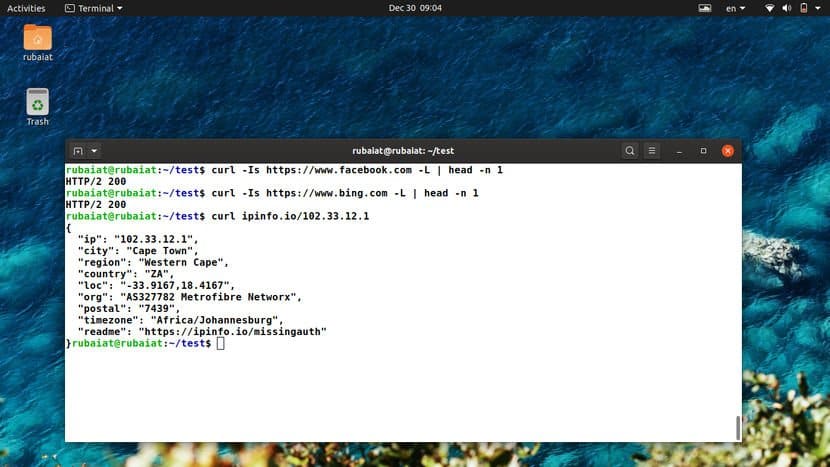
$ curl -Is https://www.facebook.com -L | head -n 1
This command should return the HTTP status code 200 for sites
that are up and stable. If it returns in a 4XX code, the site is
unavailable at the moment.
36. Determine Geo-Location of a Site
You can also leverage curl to find out the geo-location of a
remote resource. The following command will print out all
information related to your physical location.
$ curl ipinfo.io
It should display things like IP, region, location co-ordinates,
postal code, and timezone among other information. To find out
information for a specific IP, use the following command.
$ curl ipinfo.io/197.143.162.90
This command will print out the geolocation information of the
specified IP address in a similar manner.
37. Change the Progress Meter
The default progress meter shows various information such as
transfer amount, percentages, and so on. The curl command also
allows you to use a simple progress bar instead of the default
meter. You can activate this using the -# option,
as shown in the below examples.
$ curl -# -O https://persiadigest.com/uploads/gallery/1547451742.jpg
This command downloads a picture file and displays the progress
using a percentage bar rather than the usual statistics. It can be
useful to many shell scripts due to its straightforward output.
38. Upload Images
You can use curl to effortlessly upload image files from your
system to a remote server. The following example demonstrates a
simple but effective example highlighting this technique.
$ curl -F "img_file=@~/Pictures/Personal/image.jpg" https://example.com/upload.php
$ curl --form "img_file=@~/Pictures/Personal/image.jpg" https://example.com/upload.php
You’ll need to adjust the URL portion based on your website.
cURL will upload the file called image.jpg from the
directory ~/Pictures/Personal. Other files such as
texts, songs, and pdfs can be uploaded in the same way.
39. Verify Untrusted Short Links
Short links are a common way of sharing URLs among friends and
colleagues. However, it’s hard to say what exactly a short link
points to since the shortening process makes the URL total cryptic.
Thankfully, we can use curl to expand these short links and
determine whether they are safe for our system or not.
$ curl -sIL https://bit.ly/2MFIhgv | grep -i ^location;
The above command determines the short link to be pointing at a
youtube video. When using multiple short-hand parameters with curl,
we can combine them together as done in this example.
40. Check Out the Weather with cURL
The cURL command in Linux has been integrated with numerous
third-party applications for greater functionalities. For example,
we can easily find out the current weather information using curl.
Take a quick glance at the below examples to find out how this
works in Linux and BSD systems[8].
$ curl http://wttr.in/rajshahi
$ curl http://v2.wttr.in/rajshahi
The last portion of the above lines denotes the physical
location. Simply replace it with your habitat to get accurate
weather report right into your terminal.
41. Grab a Random Number
Another funny curl command I often use to grab a random number
is listed below. You can leverage this command when looking for
random integer values inside bash scripts.
$ curl "https://www.random.org/integers/?num=1&min=1&max=100&col=1&base=10&format=plain&rnd=new"
Copy this command and run it multiple times. You’ll get a new
number each time you run it in your Linux terminal.
42. Grab a QR Code
QR codes are machine-readable matrix barcodes that are in wide
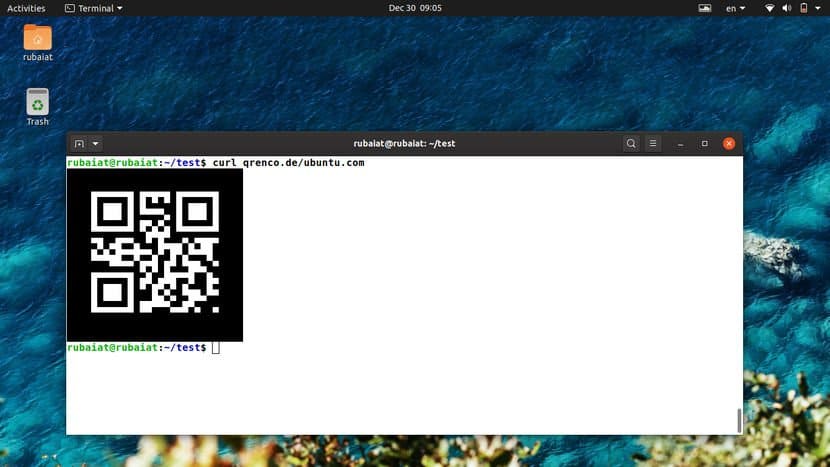
use in recent times. The following curl command in Linux fetches a
QR code for a site using a third-party website.
$ curl qrenco.de/ubuntu.com
Multiple other sites can be used for this task. We’ve sided with
qrenco.de due to its simplicity. However, you can do the same with
other applications that provide the same functionality.
43. Tweet from cURL
You can easily utilize curl to create automated or scheduled
tweets. You’ll need to provide your twitter credentials using the
username-passphrase combo seen earlier. The below command shows a
quick demonstration.
$ curl -u user: pass -d status="Handling my tweets from cURL" http://twitter.com/statuses/update.xml
Simply replace user and pass with your twitter credentials and
this command will post a new tweet consisting of the string
“Handling my tweets from cURL”.
44. Convert Documents with cURL
The cURL command also allows users to convert documents into one
format from another. The following command illustrates how to
convert an HTML document to a PDF file using Linux cURL.
$ curl \
http://c.docverter.com/convert \
-F from=html \
-F to=pdf \
-F input_files[]=@<(echo hello) > FILENAME.PDF
When this command is finished executing, you’ll get a PDF
document called FILENAME.PDF in your local directory. Run
the file command on this document to verify this, as shown
below.
$ file FILENAME.pdf
45. Transfer Large Files with Transfer.sh
Transfer.sh[9]
is a simple but effective file sharing facility for the terminal.
It allows users to upload files up-to 10G and encrypt them if
required. The uploaded files will be available for a period of 10
days. First, create a simple text file called test.txt and then run
the below command.
$ cat test.txt|gpg -ac -o-|curl -X PUT --upload-file "-" https://transfer.sh/test.txt
It will ask for a passphrase two times and upload it after
encrypting the file using a GPG key. Use the below command to
download this file and decrypt it.
$ curl https://transfer.sh/1h4tfs/test.txt|gpg -o- > test.txt
The link of the file will be provided after the completion of
the first command.
46. Increase Verbosity
You can have a real-time look at what the workings of cURL by
adding the verbosity flag -v. This will print out
the details of the ongoing communication. Try out the following
commands to see how this works in cURL.
$ curl -v https://www.google.com/search?q=ubuntu
$ curl --verbose https://www.google.com/search?q=ubuntu
Both of the above commands are equivalent in action and provides
much useful information about our remote communication.
47. Trace Communication Data
The –trace option enables us to view how
incoming and outgoing data are being sent and received. They are
often very useful in debugging and provides essential information
on remote data transfers.
  $ curl --trace dumpfile https://www.google.com/search?q=ubuntu
$ curl --trace - https://www.google.com/search?q=ubuntu
The first example will store the trace dump to a file called
dumpfile while the second command will output the data
directly to the STDOUT.
48. View Version Information
The cUrl command in Linux has seen numerous revisions and
version changes. Knowing your curl version is crucial since some
options discussed in this guide won’t work in some older versions
of curl. Take a look at the following curl commands.
$ curl -V
$ curl --version
Both of the above commands are equivalent and will provide
information like the libcurl version, release date,
supported protocols, and features.
49. Consult Help
The help page of curl, like other widely used terminal commands[10], prints out a concise
summary of all available options. It’s a great place to start
whenever you’re stuck at some point.
$ curl --help
Enter the above command to get a quick reminder about the usage
of advanced options.
50. View Documentation
The curl command comes with excellent, in-depth documentation
which makes it easy to learn the different usage of its vast array
of options. No matter whether you’re a beginner or a seasoned user,
you will always learn something new from the manual page of
curl.
$ man curl
Don’t forget to consult this manual if you’re stuck with a
problem for a considerable amount of time.
Ending Thoughts
The cURL command in Linux is arguably one of the de-facto tools
for data transfer. An estimated 10 billion users are reported to
use this tool due to its compelling, diverse, and effective feature
set. Our editors have gone through an unending list of commands
before putting together this guide. It contains everything a
beginning Linux user may need alongside many advanced features.
Hopefully, we were able to provide you all the information you’re
looking for. Bookmark this guide for future references and feel
free to ask any questions in the comment section below.
References
- ^
RFC 3986
(tools.ietf.org) - ^
modern
Linux and BSD systems (www.ubuntupit.com) - ^
xargs
(en.wikipedia.org) - ^
Linux
shell scripts (www.ubuntupit.com) - ^
download
documents from remote FTP servers.
(www.ubuntupit.com) - ^
automated CRON jobs
(www.ubuntupit.com) - ^
how to
send emails (www.ubuntupit.com) - ^
Linux
and BSD systems (www.ubuntupit.com) - ^
Transfer.sh
(transfer.sh) - ^
widely
used terminal commands (www.ubuntupit.com)
The cURL utility is a simple yet powerful command-line tool for
transferring files to/from remote locations. Its full form stands
for ‘Client URL’. It has cemented its position as one of the best
tools for remote data transfer over the internet. cURL offers a
robust collection of commands that enable many advanced
functionalities. Additionally, most curl command in Linux works
exceptionally well for headless agents and/or automated scripts. To
help you get started with cURL, our editors have compiled this
thoughtfully curated introductory guide. Although it’s meant as a
starting point for beginning Linux users, seasoned users can use it
as a reference guide.
Essential cURL Command in Linux
The cURL utility supports a wide variety of protocols and
features. We’ve outlined the essential commands with appropriate
examples and suggest readers try them interactively for gaining
first-hand experience on them. As with any Linux tool, your
expertise with cURL will only grow when you continue to use it in
everyday life.
cURL Syntax and Usage
The cURL utility supports a plethora of communication protocols
like HTTP, HTTPS, FTP, SSH, and so on. You can find the entire list
of supported protocols in RFC 3986[1]. The below line will
demonstrate the basic syntax of cURL.
curl [options] [URL...]
URL(s) is the remote address for your communication, and options
consist of parameters like cookie setting, proxy, SSL, and so on.
Most modern Linux and BSD systems[2] should have cURL
installed. If not, you can easily install it from your package
manager.
1. Download a Single File
When you specify no additional options for curl, it will simply
fetch the data using the default communication protocol HTTP. The
below command will retrieve the source code for the given site.
$ curl www.example.com
We’ve used a placeholder domain name for our demonstration
purpose. You will need to replace that with a real domain name in
order to see a practical result. After curl has finished, simply
list your current directory for viewing the downloaded file.
2. Download and Rename Files
As you can guess, simply downloading the source of a website is
rarely useful to normal users. Thankfully, you can easily specify
what file to download. Take a look at the below example to see this
in action.
$ curl -o pic-of-the-day.jpg https://apod.nasa.gov/apod/image/1912/Orava_Duskova_WinterHexagon.jpg
This command downloads the astronomy picture of the day from
NASA and saves it as pic-of-the-day.jpg. The
-o option allows you to do this. This option is
actually not required. However, if you don’t use this, cURL will
show the binary output in the STDOUT, causing a
mess of your terminal.
3. Download and Save Files
We can also download files and save them using their default
names. You’ll need to utilize the -O option for
this purpose. The below command demonstrates this using the same
image file in the above example.
$ curl -O https://apod.nasa.gov/apod/image/1912/Orava_Duskova_WinterHexagon.jpg
$ curl --remote-name https://apod.nasa.gov/apod/image/1912/Orava_Duskova_WinterHexagon.jpg
Please note the omission of the filename parameter used earlier.
cURL simply extracts the filename of this image from its URL and
saves it using that.
4. Download Multiple Files
cURL also allows us to download multiple files at the same time.
It’s pretty straightforward, and all you need to do is supply their
URLs one after another after the -O option.
$ curl -O https://apod.nasa.gov/apod/image/1912/Orava_Duskova_WinterHexagon.jpg \
-O https://persiadigest.com/uploads/gallery/1547451742.jpg \
-O https://persiadigest.com/uploads/gallery/1547452172.jpg
This command will download the three images specified by their
URLs and save them using their default names. The backslash
‘\’ is used for spanning the entire command into
multiple lines in the terminal.
5. Resuming Downloads
Sometimes your downloads may get interrupted for some reason.
Thankfully, cURL allows us to resume paused downloads using the
-C option. This option requires an offset to
determine from where to continue the download. This offset is the
exact number of bytes that have been downloaded already, and you
want to skip.
$ curl -C- -O https://persiadigest.com/uploads/gallery/1547452172.jpg
$ curl --continue-at - -O https://persiadigest.com/uploads/gallery/1547452172.jpg
By adding the – after -C, we
tell cURL to guess the offset by itself. It’s a handy way that
saves us the trouble of manually checking the downloaded
amount.
6. Download Files using Parts of URLs
The cURL command in Linux allows us to select parts of URLs by
specifying them as a set inside square braces. Take a quick look at
the below illustrations to see them in action.
$ curl -O https://persiadigest.com/uploads/gallery/1547452[200-300:25].jpg
This command will download 5 files. The first one is the
1547452200.jpg file from the above URL, and the next 4
will increase with the step value 25.
7. Retrieve URLs from Files
It’s possible to download remote data using URLs from a file.
You’ll need to leverage xargs[3]
for this purpose. First, create a test file containing the URLs for
your files. Now, take a look at the next example to understand how
this works.
$ xargs -n 1 curl -O < urls.txt
I’ve used a file named urls.txt for this example, which
contains some of the URLs we used earlier. cURL will fetch them one
after another in a sequence and save the files using their default
name on the remote server.
8. Retrieve URL Headers
HTTP headers may contain several name-value pairs which enable
the client or server to transmit additional information regarding a
web request/response. They usually contain information like content
type, user agent, and encoding. The -I option
tells cURL to fetch this data from remote servers.
$ curl -I https://www.ubuntupit.com/
$ curl --head https://www.ubuntupit.com/
The above commands are equivalent and retrieve many important
staffs like the HTTP response code, information about content, and
cookies among others.
9. Check Whether a Site Supports HTTP/2
The HTTP/2 is a significant revamp of HTTP and will replace it
as the standard web protocol in the future. Many sites have started
to adopt it, and you can easily check whether a site supports
HTTP/2 or not using the below cURL command in Linux.
$ curl -I --http2 https://www.ubuntupit.com/ | grep HTTP
We’re simply piping the output of curl to grep for checking the
availability of HTTP/2. You can check our thorough guide on grep to
understand this command in more detail. If the server supports this
protocol, it will return a line containing HTTP/2 200.
10. Follow HTTP Redirects
Sometimes you may query for a file that’s been moved to a
different server. By default, curl returns the new location of this
file but doesn’t follow the new location. You can tell curl to
follow the redirects in such situations by using the
-L or –location option, as
demonstrated below.
$ curl google.com
$ curl -L google.com
$ curl --location google.com
The first command tries to fetch the non-www version of the
Google search. It results in a message which indicates that this
site has been moved to a new location. The latter two commands,
however, query the new locations.
11. Limit Transfer Rate
The cURL command in Linux allows us to limit the transfer rate
using the –limit-rate parameter. This is a useful
feature for Linux shell scripts[4]
or automated jobs like CRON.
$ curl --limit-rate 1m -O https://github.com/JetBrains/kotlin/releases/download/v1.3.61/kotlin-native-linux-1.3.61.tar.gz
This command downloads the Kotlin installation package for Linux
from its GitHub repo. It restricts the retrieval speed to a maximum
of 1 megabyte (MB) and saves the file using its default name.
12. Download Files Based on Modification
Date
You can tell cURL to only fetch a file if it has been modified
after/before a pre-defined date. The -z option is
used for specifying the date parameters, as shown by the below
examples.
$ curl -z 01-Dec-19 -O https://persiadigest.com/files/en/news_albums/7596/83/thumbnails/thm_4188_934.jpg
$ curl --time-cond 01-Dec-19 -O https://persiadigest.com/files/en/news_albums/7596/83/thumbnails/thm_4188_934.jpg
This command will download the picture lead by the URL if it’s
modified after the first of December 2019. We can say that it’s not
the case since curl aborts the download without any message.
$ curl -z -01-Dec-19 https://persiadigest.com/files/en/news_albums/7596/83/thumbnails/thm_4188_934.jpg
Now, this time cURL will download this file because we’ve
specified the date to be before December 01, 2019. Notice the
preceding – before the date expression.
13. Send HTTP URL Authentication
The curl command allows users to pass authentication information
for remote servers. This comes in handy when fetching documents
from sites protected via credentials. We’re demonstrating a simple
mock example to illustrate this issue for our audience below.
$ curl -u USER: PASSWORD www.example.com/some/file
$ curl --user USER: PASSWORD www.example.com/some/file
So, curl tries to fetch the document via validating your login.
The -u option takes a username-password combo to
enable curl to do this. We can also use other authentication
schemes like NTLM.
14. Download Documents via FTP
We can very easily leverage cURL to send or receive files from
FTP servers. The below commands will illustrate how to establish an
FTP connection using the cURL command in Linux. You’ll also learn
how to download documents from remote FTP
servers.[5]
$ curl -u FTP_USER:FTP_PASSWORD ftp://ftp.example.com/public/dir/
This command will connect to the mock server over FTP using the
specified credentials. It will list all documents inside
/public/dir/ since it’s a directory. However, if
we point curl to a file, it’ll download it directly.
$ curl -u FTP_USER:FTP_PASSWORD -O ftp://ftp.example.com/public/dir/image.jpg
This command will download the image.jpg file in your
local directory.
15. Upload Documents via FTP
Uploading documents to FTP servers is also pretty
straightforward. All you need to do is pass the -T
option, followed by the name of your file or files. The following
examples demonstrate how to upload a single file, multiple files,
and a range of files over FTP.
$ curl -T image1.jpg -u FTP_USER:FTP_PASSWORD ftp://ftp.example.com/public/dir/
$ curl -T image1.jpg image2.jpg image3.jpg -u FTP_USER:FTP_PASSWORD ftp://ftp.example.com/public/dir/
$ curl -T image[4-10].jpg -u FTP_USER:FTP_PASSWORD ftp://ftp.example.com/public/dir/
The first command uploads the file image1.jpg to the
/public/dir directory. The second one uploads all
three files, and the last example uploads image4.jpg to
image10.jpg. You can also use
–upload-file as a substitute for
-T if you want.
16. Send Form Data
The cURL utility makes it effortless to transfer form data using
the HTTP POST request. You can upload not only text but also binary
data. So, it’s possible to send both files and text input.
Additionally, curl allows you to specify the content type.
$ curl -F 'username=user' 'password=userpassword' www.example.com/login
$ curl -F 'username=user' 'password=@/etc/passwd' www.example.com/login
$ curl -F 'username=user' 'password=<passfile' www.example.com/login
The first example sends the form values as strings while the
second one sends a string for the username and uploads the file
/etc/passwd. Finally, the last example creates a form
field called password and sends its value from the file
passfile.
17. Set Personalized User-Agent
When you send an HTTP request, it contains the information about
your client using the user agent field. By default, cURL command in
Linux will send curl/<version> as the user agent.
Many admins block such requests to prevent potential scraping
attempts. So, it’s a good practice to change the user agent into
something more common.
$ curl -A "Mozilla/5.0 (X11; Linux x86_64; rv:60.0) Gecko/20100101 Firefox/60.0" https://getfedora.org/
$ curl --user-agent "Mozilla/5.0 (X11; Linux x86_64; rv:60.0) Gecko/20100101 Firefox/60.0" https://getfedora.org/" \
www.example.com
You can use either -A or
–user-string as they are equivalent.
18. Send POST Requests
The HTTP protocol allows multiple request methods for
communicating with remote servers. Each method has its own purpose,
such as POST for posting data, PUT for updating data, and DELETE
for deleting. By default, cURL performs an HTTP GET request that
simply fetches the specified data.
$ curl -d "username=user&password=passphrase" -X POST www.example.com/login
$ curl --data "username=user&password=passphrase" -H "Content-Type: application/x-www-form-urlencoded" -X POST www.example.com/login
The first command performs a POST method that supplies a
username-password combination to the remote server. The second
example denotes the content type. Another commonly used type is
application/json.
19. Send PUT Requests
HTTP PUT requests allow users to update the value of a field
over remote connections. It works almost similar to the above curl
command, as shown in the below example.
$ curl -d "{\"parameter\":\"value\"}" -H "Content-Type: application/json" -X PUT www.example.com/api
$ curl --data "{\"parameter\":\"value\"}" -H "Content-Type: application/json" -X PUT www.example.com/api
This command updates the value of the parameter field with the
supplied value. Here, we’ve sent data for a remote JSON object.
20. Send DELETE Requests
The HTTP DELETE verb enables us to remove a value from a remote
field. It’s often used in Linux bash scripts and offers great
flexibility.
$ curl -d "{\"parameter\":\"value\"}" -X "DELETE" www.example.com/api
$ curl --data "{\"parameter\":\"value\"}" -X "DELETE" www.example.com/api
The above command will send a delete request to our mock API.
You can specify additional options, such as encoding and file
parameters.
21. Save Website Cookies
Cookies are small pieces of data sent to your system by remote
servers when you visit a page there. They’re usually used for
increasing the user experience. The curl command allows us to save
cookies from a website for later inspection. This is a
straightforward task and requires a simple option called
–cookie-jar.
  $ curl --cookie-jar up-cookies.txt https://www.ubuntupit.com/
$ curl --cookie-jar persia-cookies.txt https://persiadigest.com/uploads/gallery/1547451742.jpg -O
$ curl --cookie-jar - https://persiadigest.com/uploads/gallery/1547451742.jpg
The first command will store the cookies in a file named
up-cookies.txt, and the second one will download the cookies to
persia-cookies.txt. You can also print the output to
STDOUT by replacing the filenames with
‘-‘ hyphen or dash.
22. Send Cookies via cURL
The curl command also enables us to send data as cookies to
remote HTTP servers. You will need to utilize the
-b or –cookie option for this
purpose, as demonstrated by the below examples. You need to pass
the data in name-value pairs separated by equal signs.
$ curl --cookie up-cookies.txt https://www.ubuntupit.com/
$ curl -b "USER_TOKEN=Yes" https://www.ubuntupit.com/
The first example sends back the cookies received from the
previous command. The last example specifies the cookie data inside
double-quotes.
23. Use Proxy with cURL
Linux curl command allows users to use HTTP proxies. If not
specified, the default port is assumed to be 1080. Since all
communications made over an HTTP proxy is converted to HTTP, some
protocol-dependent functionalities might become unavailable.
$ curl -x 192.168.99.1:8888 http://example.com/
$ curl -U user:passphrase -x 192.168.99.1:8888 http://example.com/
The first command utilizes the proxy
192.168.99.1 on the specified port. The second
example demonstrates how to pass server authentication information
using the -U flag.
24. Customize Name Resolutions
Often site admins want to test their websites locally before
making them available to the rest of the word. The following cURL
command in Linux will illustrate how to resolve domain names for
this purpose.
$ curl --resolve www.example.com:80:localhost http://www.example.com/
Now curl will request the site from your
localhost instead of the domain name. It will
refrain from using the DNS or /etc/hosts information.
25. Send Emails using cURL
We can leverage the curl command for sending emails from
automated CRON jobs[6]
or scripts. The cURL utility uses the SMTP(Simple Mail Transfer
Protocol) for this job. You’re required to provide information such
as address details and mail server alongside the message.
$ curl --mail-from admin@test.com --mail-rcpt user@test.com smtp://testmailserver.com
When you press enter, this command will expect you to type in
the email data. Simply type them as you would in a normal GUI.
You’ll need to type a period ‘.’ sign at the last
line of your message. This will send the message and exit the
command.
26. Set Timeout for Operations
Although many curl commands have a default timeout, it’s not the
case with all options. The curl utility allows us to specify the
time limit for operations like downloads or uploads. The
-m or –max-time options can be
used to enable this, as illustrated in the below examples.
$ curl -m 120 -O www.example.com/pics/image[1-10].jpg
$ curl --max-time 120 -O www.example.com/pics/image[1-10].jpg
The timeout options are in seconds. So these commands will be
active for 2 minutes and then abort no matter whether the image
downloads are complete or not.
27. Set Connection Timeouts
Contrary to operation timeouts, connection timeouts only specify
the maximum amount of time curl spends behind to establish a remote
connection. The curl command exposes the
–connect-timeout option to do this. It’s also
provided in seconds. Take a quick glance at the next example to see
this in action.
$ curl --connect-timeout 60 -O www.example.com/pics/image[1-10].jpg
Now this time curl will allow a maximum of 60 seconds for
connection establishment. If it can’t connect to the external
resource within 1 minute, it will abort the operation.
28. Split Large Downloads
Sometimes you may want to download a large file in chunks of
various sizes. It’s a useful feature for automated scripts or when
you need to cap the download amount. The –range
option provides a dynamic way to handle this using curl, as
demonstrated below.
$ curl --range 0-99999999 -O https://osdn.net/dl/manjaro/manjaro-xfce-18.1.4-191210-linux54.iso
$ curl --range 100000000-199999999 -O https://osdn.net/dl/manjaro/manjaro-xfce-18.1.4-191210-linux54.iso
$ curl --range 200000000- -O https://osdn.net/dl/manjaro/manjaro-xfce-18.1.4-191210-linux54.iso
The above commands will download the XFCE image for Manjaro in
different parts. The first line will download the first 100 MB, and
the second line will fetch the next 100 MB. The last line will
download the rest of the image, starting at 200 MB. You can then
use the cat command to merge the entire download.
29. Suppress Output and Errors
The curl command allows you to enable silent mode. In this mode,
curl will refrain from displaying the progress bar and error
messages, if any. However, you’ll still get the data you request in
your terminal. To redirect it to a file, you can use either the -O
or -o option.
$ curl -s -O https://www.example.com/picture.jpg
$ curl --silent -O https://www.example.com/picture.jpg
The above commands are equivalent and stop curl from displaying
any terminal output at all. This is a useful feature for writing
shell scripts.
30. Enable Fail Mode
The fail mode allows curl to suppress any output on server
errors. Normally in the case of silent mode, curl will download an
HTTP document that states the state of the requested resource. But,
enabling fail mode makes curl stop whenever it encounters an error
on the server-side.
$ curl -f -O https://www.example.com/picture.jpg
$ curl --fail -O https://www.example.com/picture.jpg
These commands will still display the progress bar. You may
enable silent mode to suppress this. However, remember that the
fail mode is not always fail-safe.
31. Read Emails
Earlier, we saw how to send emails[7]
from the terminal using curl. You can also use this tool to read
your incoming email messages. Take a look at the following example
to understand this in detail.
$ curl -u username:passphrase imap://mail.example.com
Running this command will return all the available mailboxes. To
view specific messages, pass the UID of the message using the
-X option, as shown below.
$ curl -u username:password imap://mail.example.com -X 'UID FETCH 123'
The cURL command in Linux supports both the IMAP and POP3
protocols for retrieving emails.
32. Specify Network Certificates
Many modern-day servers implement authentication based on
certificates. cURL allows you to specify the certificate file for
communicating with such secure servers. You will need to utilize
the -E or –cert option to do
this, as demonstrated via the below examples.
  $ curl -E path/to/certificate.crt:passphrase ftp://example.com
$ curl --cert path/to/certificate.crt:passphrase ftp://example.com
By default, curl assumes the certificate to be in the PEM
format. The passphrase part is optional, and curl will prompt you
for it if you don’t specify this field.
33. Verify Network Certificates
You may want to verify the certificates of remote servers for
many reasons, one being security. The curl utility provides the
–cacert option to do this. It takes the name of
the certificate as its argument. You’ll understand it more clearly
by inspecting the below example.
$ curl --cacert path/to/certificate.crt:passphrase ftp://example.com
This command will verify the mock site using the specified
certificate. It’s usually used to alter or override default
certificate validations.
34. Ignore SSL Warnings
Some sites on the internet are hosted using self-signed SSL
certificates. When querying these resources, curl will print an SSL
certificate warning message. We can utilize the -k
option to ignore these warnings and carry on with our
connection.
$ curl -k ftp://example.com/images/[1-10].jpg
$ curl --insecure ftp://example.com/images/[1-10].jpg
The two above commands are analogous and allow untrusted network
communications.
35. Check Whether a Site is Down
The curl command allows us to query for the status of a remote
site quite effortlessly. Take a quick look at the below example to
see this in action.
$ curl -Is https://www.facebook.com -L | head -n 1
This command should return the HTTP status code 200 for sites
that are up and stable. If it returns in a 4XX code, the site is
unavailable at the moment.
36. Determine Geo-Location of a Site
You can also leverage curl to find out the geo-location of a
remote resource. The following command will print out all
information related to your physical location.
$ curl ipinfo.io
It should display things like IP, region, location co-ordinates,
postal code, and timezone among other information. To find out
information for a specific IP, use the following command.
$ curl ipinfo.io/197.143.162.90
This command will print out the geolocation information of the
specified IP address in a similar manner.
37. Change the Progress Meter
The default progress meter shows various information such as
transfer amount, percentages, and so on. The curl command also
allows you to use a simple progress bar instead of the default
meter. You can activate this using the -# option,
as shown in the below examples.
$ curl -# -O https://persiadigest.com/uploads/gallery/1547451742.jpg
This command downloads a picture file and displays the progress
using a percentage bar rather than the usual statistics. It can be
useful to many shell scripts due to its straightforward output.
38. Upload Images
You can use curl to effortlessly upload image files from your
system to a remote server. The following example demonstrates a
simple but effective example highlighting this technique.
$ curl -F "img_file=@~/Pictures/Personal/image.jpg" https://example.com/upload.php
$ curl --form "img_file=@~/Pictures/Personal/image.jpg" https://example.com/upload.php
You’ll need to adjust the URL portion based on your website.
cURL will upload the file called image.jpg from the
directory ~/Pictures/Personal. Other files such as
texts, songs, and pdfs can be uploaded in the same way.
39. Verify Untrusted Short Links
Short links are a common way of sharing URLs among friends and
colleagues. However, it’s hard to say what exactly a short link
points to since the shortening process makes the URL total cryptic.
Thankfully, we can use curl to expand these short links and
determine whether they are safe for our system or not.
$ curl -sIL https://bit.ly/2MFIhgv | grep -i ^location;
The above command determines the short link to be pointing at a
youtube video. When using multiple short-hand parameters with curl,
we can combine them together as done in this example.
40. Check Out the Weather with cURL
The cURL command in Linux has been integrated with numerous
third-party applications for greater functionalities. For example,
we can easily find out the current weather information using curl.
Take a quick glance at the below examples to find out how this
works in Linux and BSD systems[8].
$ curl http://wttr.in/rajshahi
$ curl http://v2.wttr.in/rajshahi
The last portion of the above lines denotes the physical
location. Simply replace it with your habitat to get accurate
weather report right into your terminal.
41. Grab a Random Number
Another funny curl command I often use to grab a random number
is listed below. You can leverage this command when looking for
random integer values inside bash scripts.
$ curl "https://www.random.org/integers/?num=1&min=1&max=100&col=1&base=10&format=plain&rnd=new"
Copy this command and run it multiple times. You’ll get a new
number each time you run it in your Linux terminal.
42. Grab a QR Code
QR codes are machine-readable matrix barcodes that are in wide
use in recent times. The following curl command in Linux fetches a
QR code for a site using a third-party website.
$ curl qrenco.de/ubuntu.com
Multiple other sites can be used for this task. We’ve sided with
qrenco.de due to its simplicity. However, you can do the same with
other applications that provide the same functionality.
43. Tweet from cURL
You can easily utilize curl to create automated or scheduled
tweets. You’ll need to provide your twitter credentials using the
username-passphrase combo seen earlier. The below command shows a
quick demonstration.
$ curl -u user: pass -d status="Handling my tweets from cURL" http://twitter.com/statuses/update.xml
Simply replace user and pass with your twitter credentials and
this command will post a new tweet consisting of the string
“Handling my tweets from cURL”.
44. Convert Documents with cURL
The cURL command also allows users to convert documents into one
format from another. The following command illustrates how to
convert an HTML document to a PDF file using Linux cURL.
$ curl \
http://c.docverter.com/convert \
-F from=html \
-F to=pdf \
-F input_files[]=@<(echo hello) > FILENAME.PDF
When this command is finished executing, you’ll get a PDF
document called FILENAME.PDF in your local directory. Run
the file command on this document to verify this, as shown
below.
$ file FILENAME.pdf
45. Transfer Large Files with Transfer.sh
Transfer.sh[9]
is a simple but effective file sharing facility for the terminal.
It allows users to upload files up-to 10G and encrypt them if
required. The uploaded files will be available for a period of 10
days. First, create a simple text file called test.txt and then run
the below command.
$ cat test.txt|gpg -ac -o-|curl -X PUT --upload-file "-" https://transfer.sh/test.txt
It will ask for a passphrase two times and upload it after
encrypting the file using a GPG key. Use the below command to
download this file and decrypt it.
$ curl https://transfer.sh/1h4tfs/test.txt|gpg -o- > test.txt
The link of the file will be provided after the completion of
the first command.
46. Increase Verbosity
You can have a real-time look at what the workings of cURL by
adding the verbosity flag -v. This will print out
the details of the ongoing communication. Try out the following
commands to see how this works in cURL.
$ curl -v https://www.google.com/search?q=ubuntu
$ curl --verbose https://www.google.com/search?q=ubuntu
Both of the above commands are equivalent in action and provides
much useful information about our remote communication.
47. Trace Communication Data
The –trace option enables us to view how
incoming and outgoing data are being sent and received. They are
often very useful in debugging and provides essential information
on remote data transfers.
  $ curl --trace dumpfile https://www.google.com/search?q=ubuntu
$ curl --trace - https://www.google.com/search?q=ubuntu
The first example will store the trace dump to a file called
dumpfile while the second command will output the data
directly to the STDOUT.
48. View Version Information
The cUrl command in Linux has seen numerous revisions and
version changes. Knowing your curl version is crucial since some
options discussed in this guide won’t work in some older versions
of curl. Take a look at the following curl commands.
$ curl -V
$ curl --version
Both of the above commands are equivalent and will provide
information like the libcurl version, release date,
supported protocols, and features.
49. Consult Help
The help page of curl, like other widely used terminal commands[10], prints out a concise
summary of all available options. It’s a great place to start
whenever you’re stuck at some point.
$ curl --help
Enter the above command to get a quick reminder about the usage
of advanced options.
50. View Documentation
The curl command comes with excellent, in-depth documentation
which makes it easy to learn the different usage of its vast array
of options. No matter whether you’re a beginner or a seasoned user,
you will always learn something new from the manual page of
curl.
$ man curl
Don’t forget to consult this manual if you’re stuck with a
problem for a considerable amount of time.
Ending Thoughts
The cURL command in Linux is arguably one of the de-facto tools
for data transfer. An estimated 10 billion users are reported to
use this tool due to its compelling, diverse, and effective feature
set. Our editors have gone through an unending list of commands
before putting together this guide. It contains everything a
beginning Linux user may need alongside many advanced features.
Hopefully, we were able to provide you all the information you’re
looking for. Bookmark this guide for future references and feel
free to ask any questions in the comment section below.
References
- ^
RFC 3986
(tools.ietf.org) - ^
modern
Linux and BSD systems (www.ubuntupit.com) - ^
xargs
(en.wikipedia.org) - ^
Linux
shell scripts (www.ubuntupit.com) - ^
download
documents from remote FTP servers.
(www.ubuntupit.com) - ^
automated CRON jobs
(www.ubuntupit.com) - ^
how to
send emails (www.ubuntupit.com) - ^
Linux
and BSD systems (www.ubuntupit.com) - ^
Transfer.sh
(transfer.sh) - ^
widely
used terminal commands (www.ubuntupit.com)
Read more https://www.ubuntupit.com/useful-and-productive-curl-command-in-linux/